Quotations
In our system, the “Quotations” and “Orders” menus (and their contents) are very similar — this is because we built them on the same logical structure.
Therefore, most of what is described here also applies to Orders.
Let’s take a closer look at how these modules are structured.
Main Page
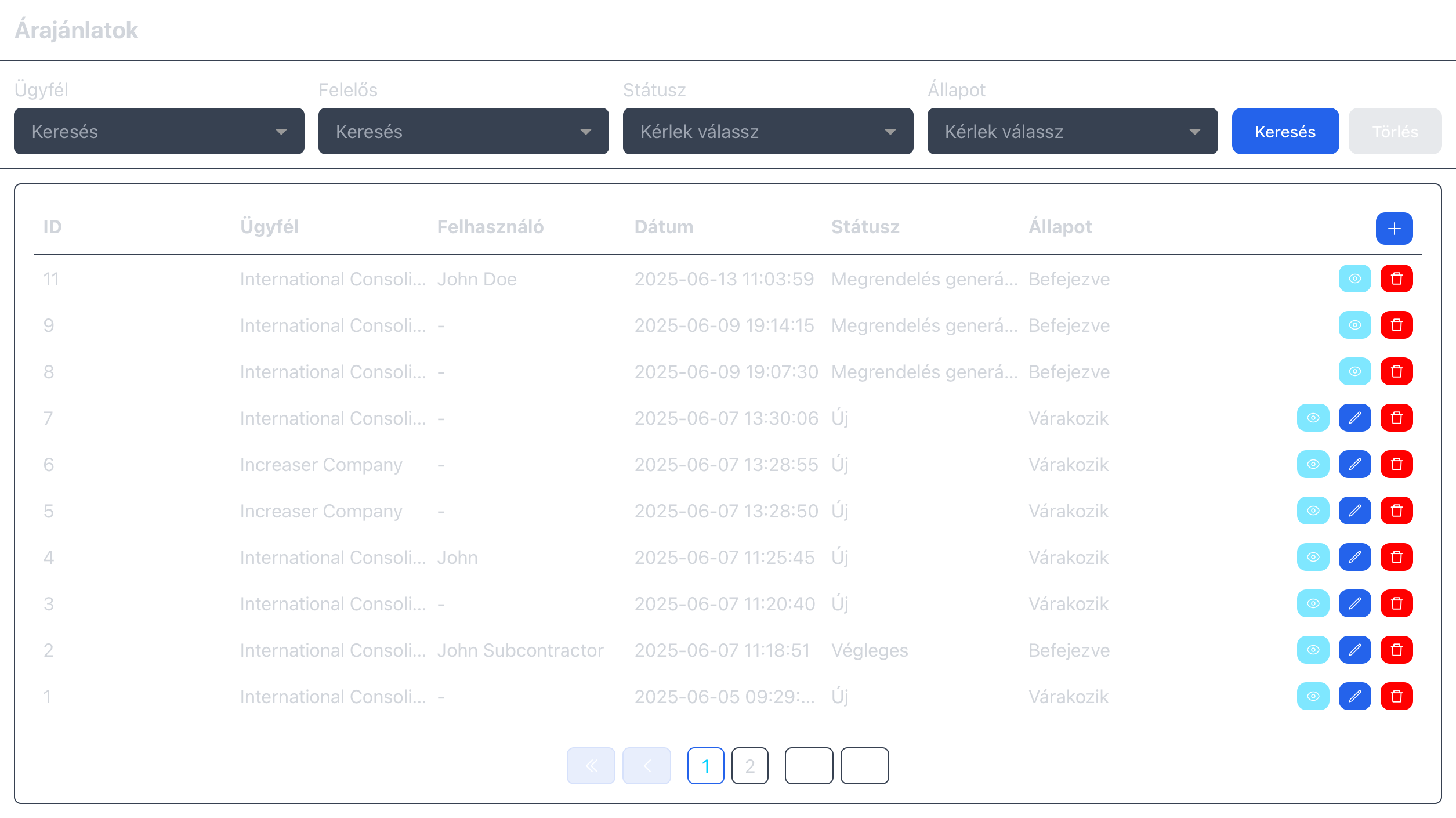
When you open this menu, you’ll see a screen like the one above.
Above the list, you can find filters (Client, Responsible and Status).
We’ll explain statuses later — “Client” naturally refers to the customer the quotation belongs to, while “Responsible” refers to the user assigned to handle the quotation.
You can create a new quotation by clicking the “+” icon button on the right side of the table header — more on this below.
At the end of each table row, there are three buttons in the following order: View details, Edit, and Delete.
If a quotation is linked to a client, that client’s name will appear in the table.
Clicking the client’s name opens the Client details page.
Similarly, clicking the linked user’s name opens their Profile page.
View / Details
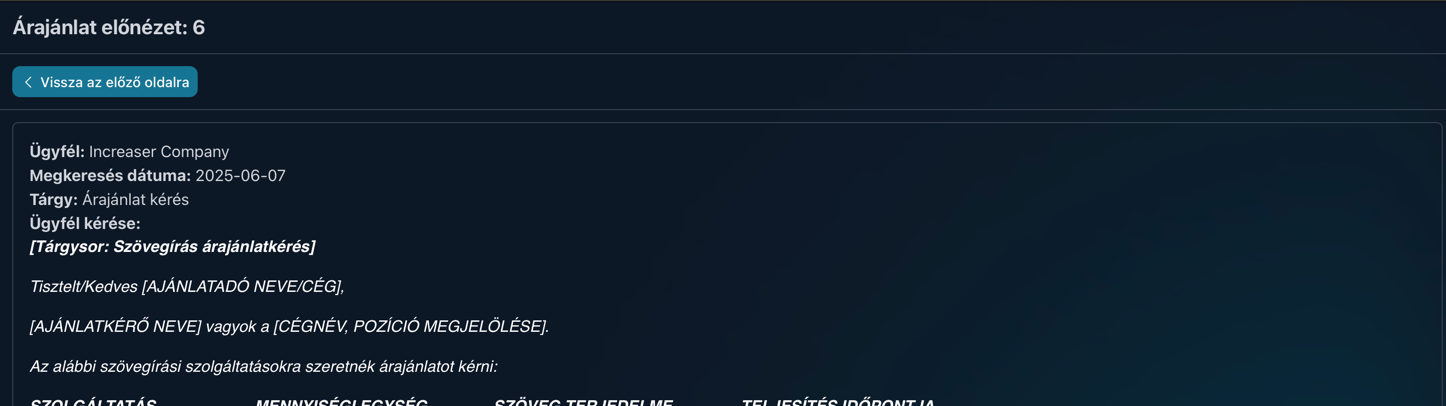
When you click View details, the screen above appears.
Here, you can see which client the quotation belongs to, when it was created, what the subject of the quotation is, and any client request (if one was provided).
Below that, you can find the body text of the quotation — either already written or still being drafted.
At the bottom of the page, you’ll see a list of uploaded files, followed by a Save button.
Clicking this allows you to either print the quotation or save it as a PDF file.
Create / Edit
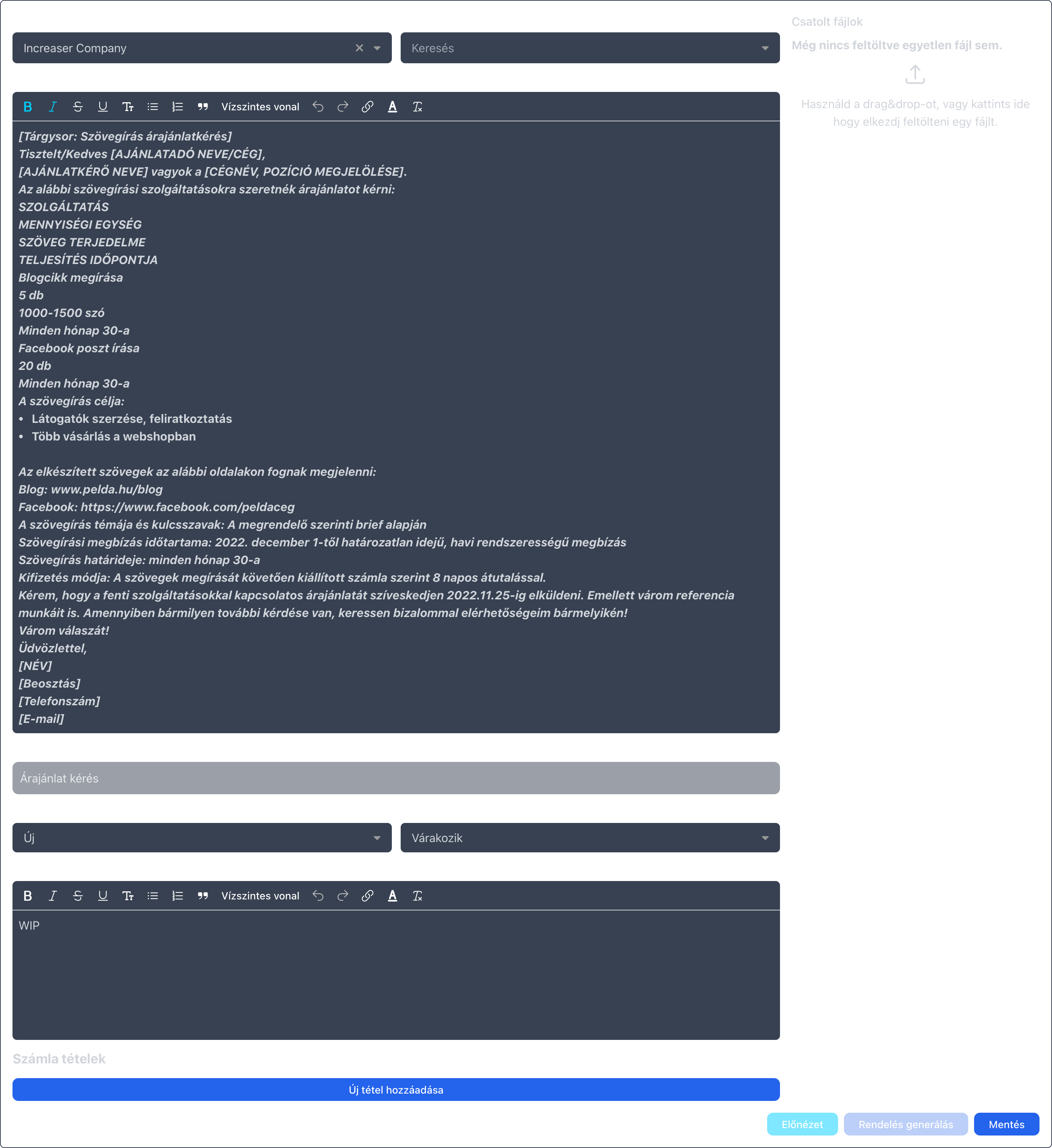
When editing or creating a quotation, you’ll see the screen above.
The interface is divided into two sections:
- On the left, you can edit the quotation’s information.
- On the right, you’ll see a list of uploaded files (if any), and below that, an area where you can upload new ones.
Let’s take a closer look at Status.
Status
The status shows where the quotation stands. A quotation can have the following statuses:
- Draft: the quotation is still being prepared,
- Sent: the quotation has been sent to the client,
- Accepted: the client has accepted the quotation,
- Rejected: the client has rejected the quotation,
- Order Generated: an order has already been created from the quotation.
The “Order Generated” status is not set manually — the quotation receives it automatically.
Specifically, this happens when you click the “Generate Order” button at the bottom of the page. You can use the button at any time, except while the quotation is still in “Draft” status. Clicking it creates a new Order based on the quotation, and the quotation receives the “Order Generated” status.
After this point, the quotation can no longer be edited.