Invoicing
At the moment, the system only supports Számlázz.hu integration.
Billingo integration is planned for a later release.
The invoicing module is available only with the appropriate permissions, and only if the Számlázz.hu API key has been entered in the Company Settings (described in more detail in the Settings / General section).
You can read more about the Számlázz.hu API key here: https://tudastar.szamlazz.hu/gyik/kulcs
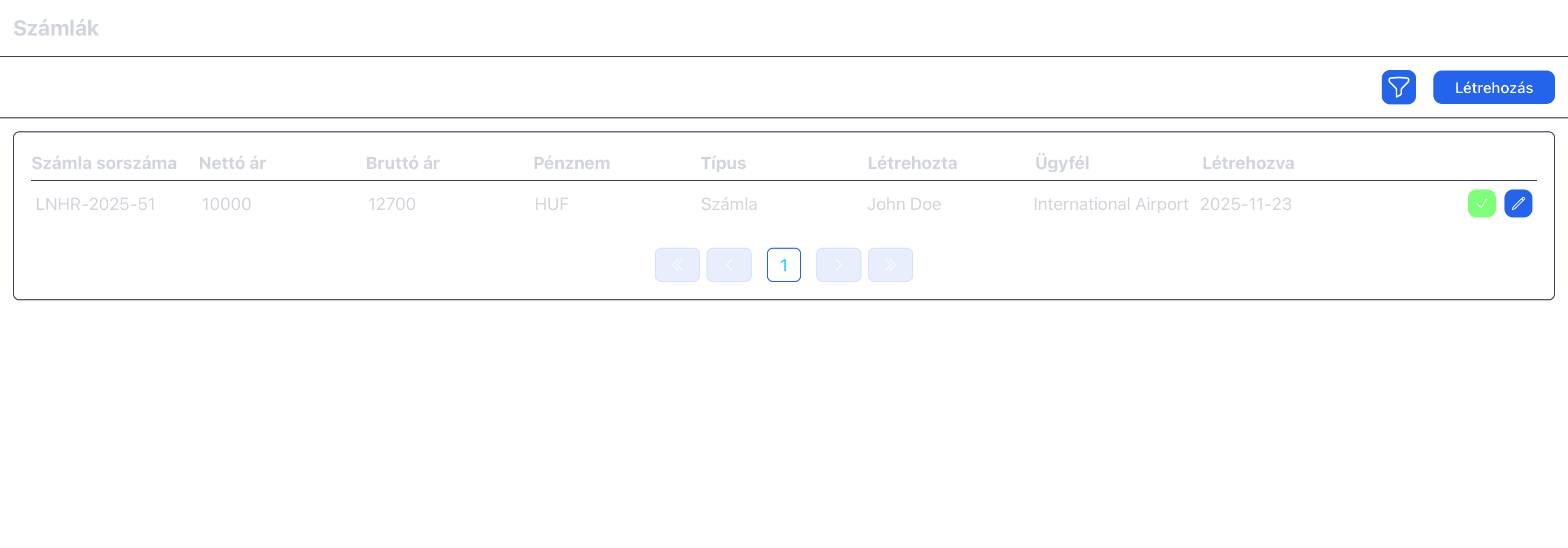
When opening the invoicing menu, you will see the list of issued invoices.
You can also check whether an invoice has already been paid or is still pending.
You can identify this by the green button with a checkmark at the end of each row:
if the button appears, you can mark the invoice as paid.
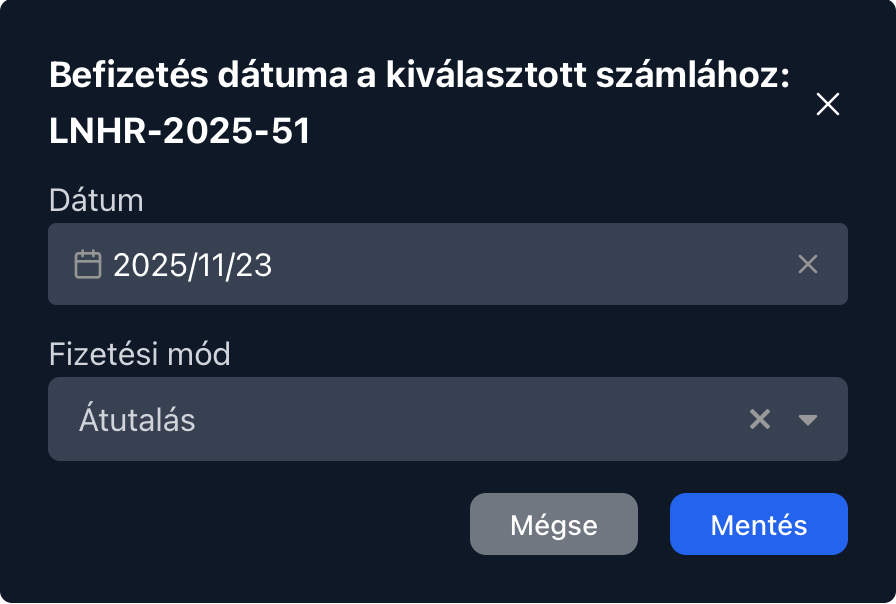
When marking an invoice as paid, you can enter the payment date and the payment method.
By default, the payment method selected here will match what was chosen when the invoice was created — we will return to this later.
By clicking the pencil-icon button, you can cancel (storno) an invoice or download it.
Important
Currently, there is no active data synchronization between CoreCRM and Számlázz.hu.
This means that invoices created on the Számlázz.hu website will NOT appear in CoreCRM.
The sync works only in one direction: invoices created in CoreCRM are transferred to Számlázz.hu.
Creating an Invoice
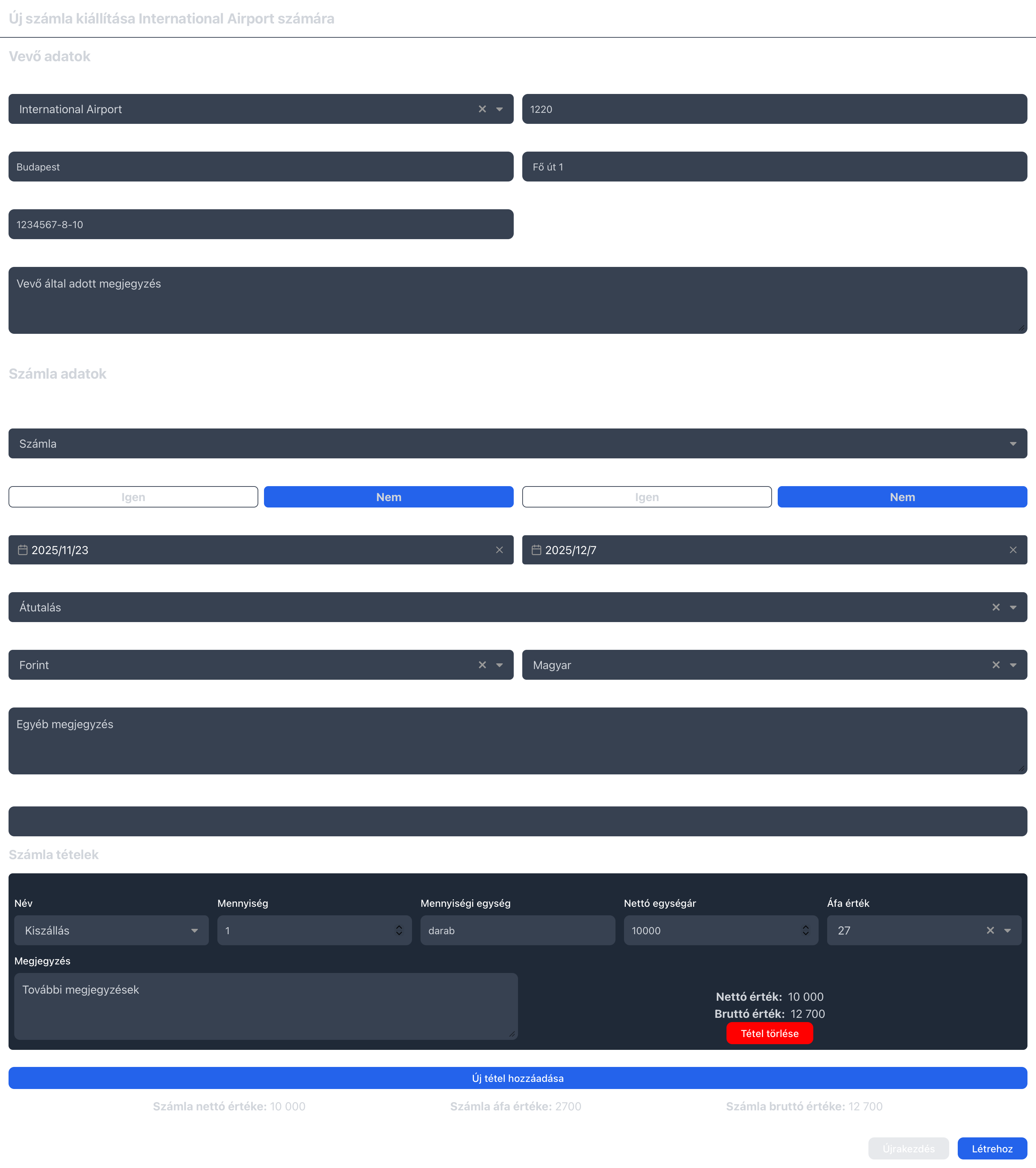
The invoice creation interface is nearly identical for most invoice types, with only minor differences.
Below, we walk through the process for the standard Invoice type, and list any differences afterward.
Customer Information
The first step is selecting the client for whom the invoice will be issued.
- If the client has a billing address saved, the fields will be filled in automatically.
- If not, the system will use the client’s general address.
- If neither exists, you must enter the address fields manually.
Invoice Details
After selecting the customer, you must provide the invoice-specific information — such as the service date, payment deadline, currency, etc.
There are three fields here worth highlighting, because they may not be self-explanatory:
1. “E-invoice”
This service is NOT enabled by default in Számlázz.hu.
Before using it, make sure your Számlázz.hu profile supports e-invoicing.
2. “Download invoice”
This simply indicates whether the invoice should be downloaded automatically right after it is issued.
3. “Invoice type”
This field determines which type of invoice will be created.
Just like with e-invoicing, ensure that your Számlázz.hu subscription supports the selected type (e.g. issuing “Receipt / Nyugta”).
You can choose from the following invoice types:
- Invoice
- Proforma Invoice (Díjbekérő)
- Advance Invoice (Előlegszámla)
- Final Invoice (Végszámla)
- Receipt (Nyugta)
Special cases:
- When issuing an Advance Invoice, you must specify the related Proforma invoice number.
- When issuing a Final Invoice, you must enter the related Advance Invoice number.
Invoice Items
You can add unlimited line items to an invoice.
When typing into the “Name” field, the system automatically searches among the items in your Portfolio.
If you select an item from the suggestions, its:
- unit,
- net unit price,
- and VAT rate
are all filled in automatically.
If, however, you select the item named exactly as you typed it (the “custom item” shown at the top of the results), you can add any custom invoice item, even if it does not exist in your portfolio.
For custom items, you must manually enter:
- the unit,
- the net unit price, and
- the VAT rate.
Portfolio items already contain this information, so in that case, no additional input is needed.