Tasks
The tasks found in the "Tasks" menu are not the same as those in the "Kanban" menu. The latter is part of a more complex system, while the Tasks module is a standalone feature.
We created the Tasks module so that users can assign tasks to others—or to themselves—without using the more complex Kanban system.
However, we kept several useful features, such as the ability to associate clients, users, multiple users, or a checklist with a task.
Main Page
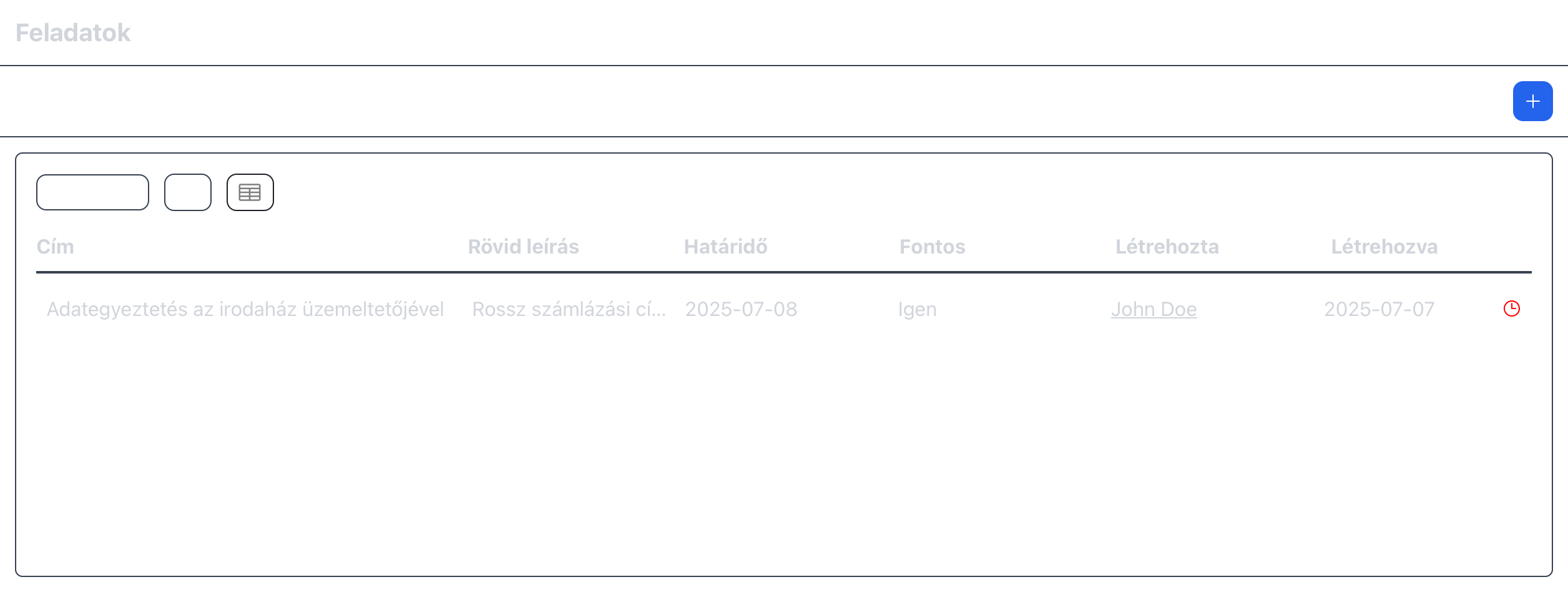
When opening the menu, you will see the screen shown above.
At the top of the page, there are two dropdown lists and a button with a "+" icon.
If you have the necessary permissions, this button allows you to create a new task.
The first dropdown (on the left) lets you choose whether the system should display active tasks or tasks that you have already completed.
It is important to highlight that these are tasks completed by you, even if the task itself is still active.
This situation typically occurs when a task is assigned to multiple people. If you have already completed the task but another assigned user has not, the task will appear as completed for you but still active overall.
The second dropdown allows you to switch between:
- Tasks assigned to me
- Tasks created by me
In the second case, you can track the progress of tasks you created and see who has completed them. We will return to this later. For now, we will focus on the "My Tasks" view, since most of the information applies to both views.
Above the list, there are two buttons that change the layout of the task list:
- Table view
- Card view
Table View Indicators
In table view, a clock icon may appear at the end of a row. This indicates that the task has a deadline.
The color of the icon indicates how soon the task is due. This logic is the same as for kanban tasks:
- Red: deadline within 5 days
- Yellow: deadline between 5 and 10 days
- White: more than 10 days remaining
The same color logic applies to card view, but instead of highlighting the clock icon, the border of the card is colored.
The "Created by" column shows the person who created the task.
Clicking their name opens their profile.
By clicking a row or card, you can open the task details.
Details
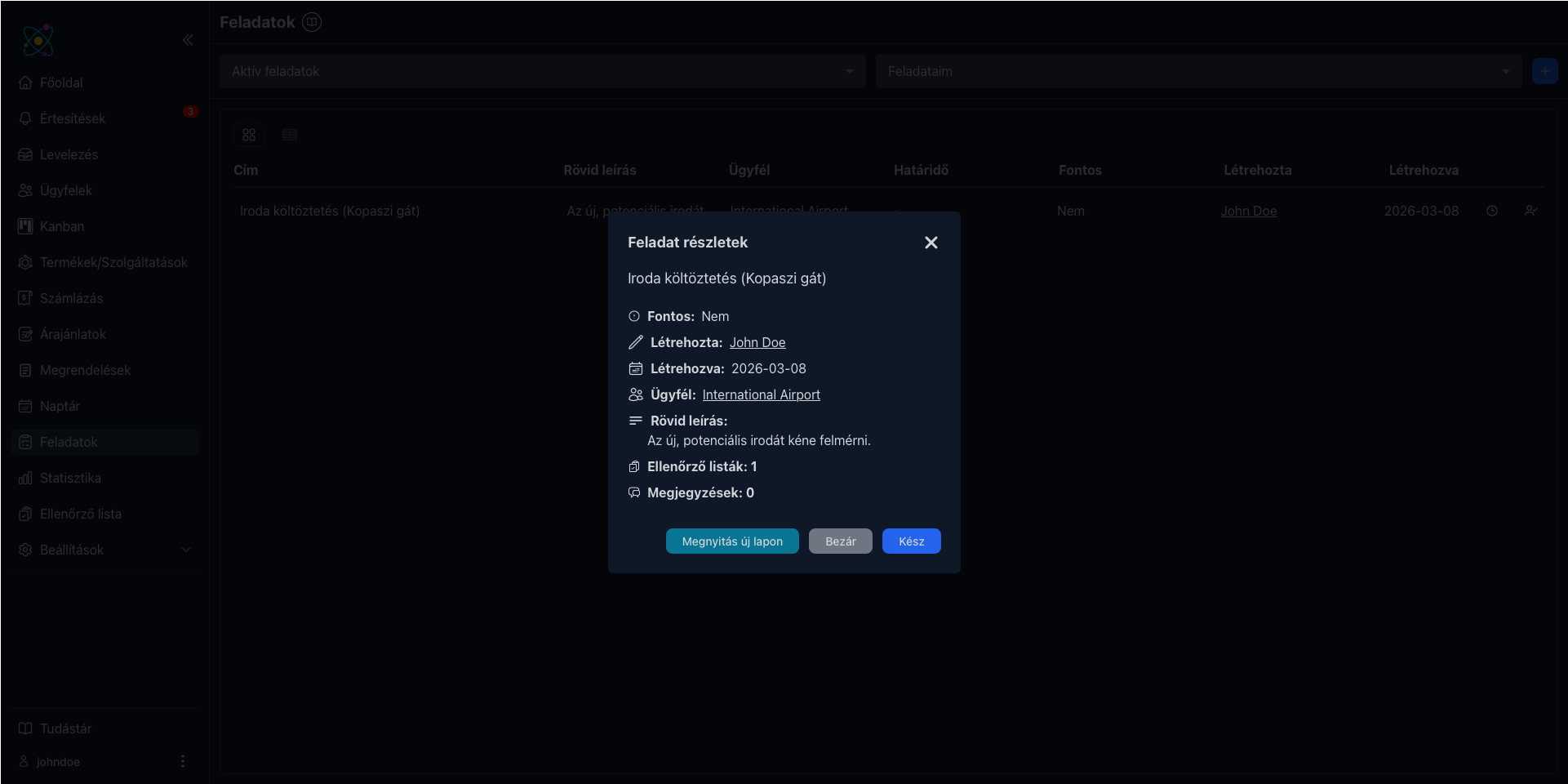
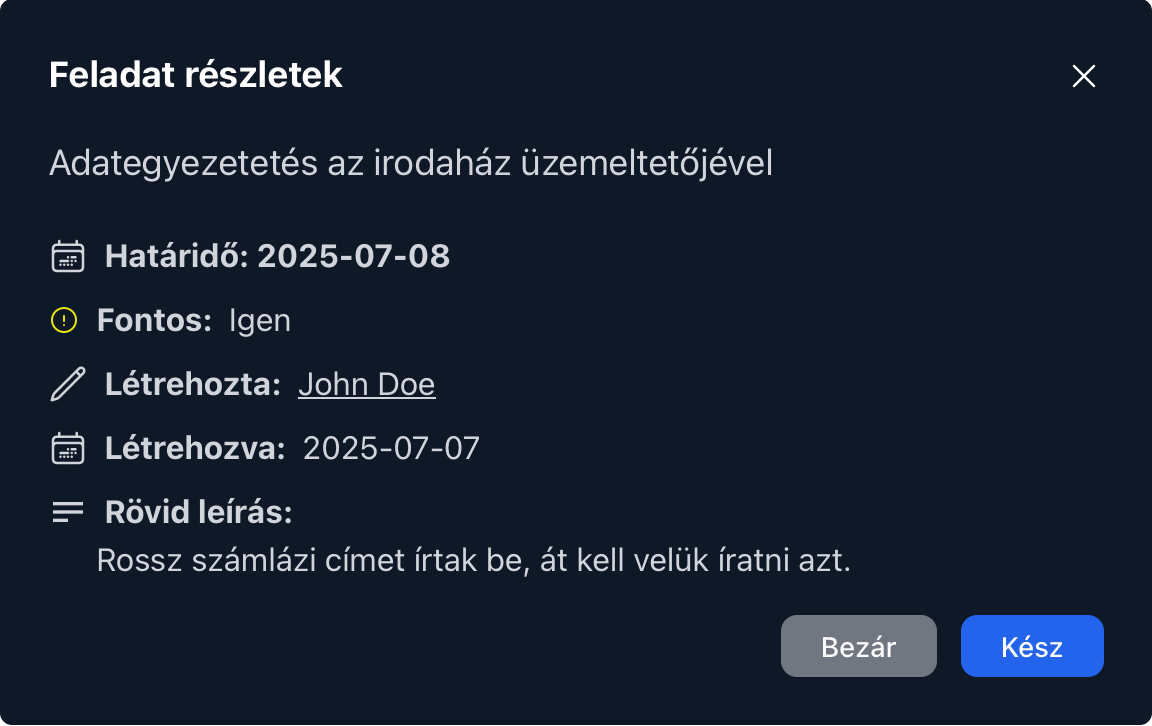
In the task details window, you can view all information related to the task.
If the task is assigned to you and you have completed it, you can click the "Done" button to finish the task.
Once completed, the task disappears from your list.
If you click "Open in new tab", you will see the following page:
Here you can see any comments attached to the task, and if available, the associated checklist.
When adding a new comment to a task, you can notify all users assigned to the task—including the user who created it.
To do this, check the option "Send notification to task participants about this comment" below the comment section.
When this option is selected, all participants receive a notification in the Notifications menu indicating that an important comment has been added to the task.
To prevent excessive notifications, this option resets after each message is sent. If the next comment is also important, the option must be checked again.
Tasks Created by Me
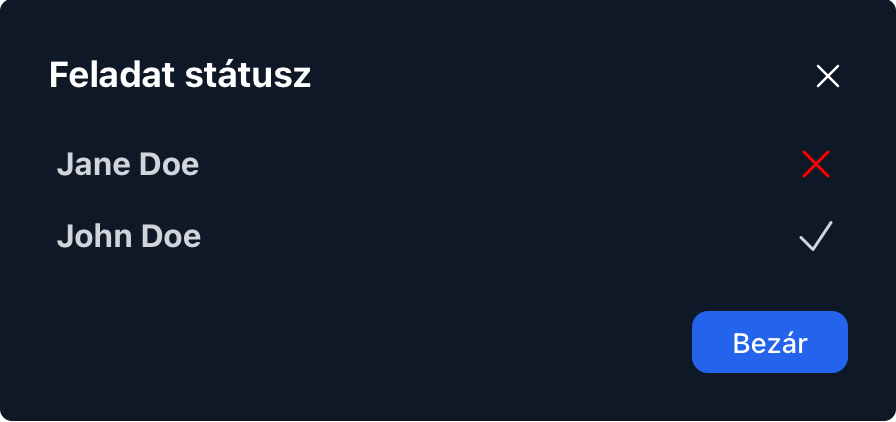
Tasks you create can be assigned to multiple users. However, you may want to track who has already completed them.
You can do this—regardless of the selected layout—by clicking the person icon.
A popup window will appear (shown above), where you can see:
- users who have not yet completed the task (red X)
- users who have completed the task (checkmark icon)