Portfolio
Within this menu, you’ll find functionality that essentially spans three submenus, because we realized that simply allowing you to add products to your portfolio wouldn’t be enough — each product can have its own distinct properties.
When you open the page, you’ll see the following screen:

As you can see, we’ve created three tabs for faster navigation: Products, Types, and Categories.
We’ll go through these three tabs below — in reverse order.
Before that, one important note:
The “Create” button in the top-right corner always creates a new item within the currently selected tab.
Categories

In this tab, you can create new product categories.
Each category has two properties:
its name, and an optional parent category.
If a parent category is set, it will also appear in the table.
You can edit a category by clicking the pencil icon at the end of its row.
For clarity:
in the example above, the “Repair” category belongs to a plumber’s portfolio.
Types

You can also create different product types.
For example, under the “Repair” category, you might have a type called “Pipes”.
Later, you can assign individual products to this type under the Products tab.
Product types are independent of categories, meaning you’re free to organize products however you prefer.
Products

The image above shows how a product entry appears in the table.
You can view or edit a product’s details by clicking the pencil icon at the end of its row.
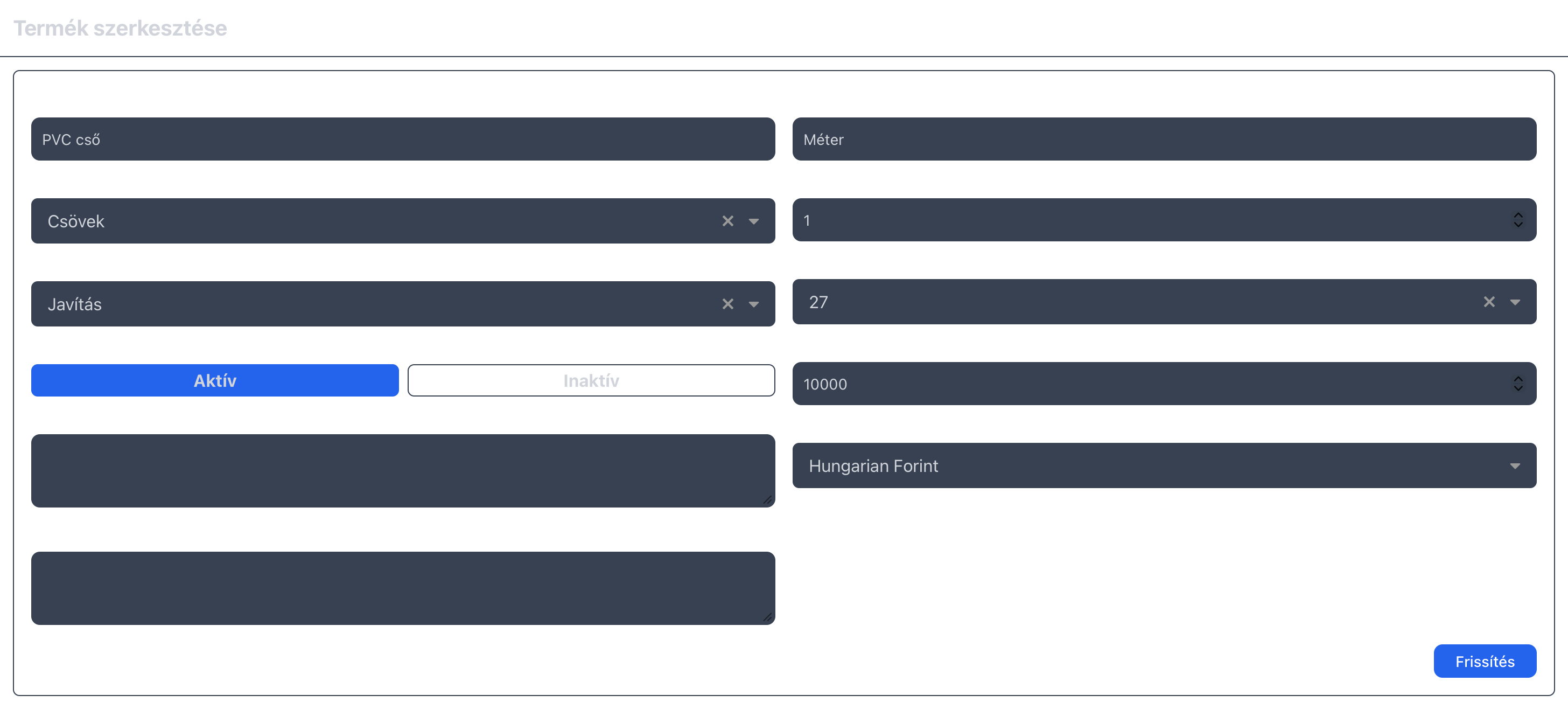
Here you can see that a product contains much more detailed information than what fits in the table.
For example, you can specify the product’s net price and VAT rate.
These values become important later — for example, when creating a quotation.
If you link products from your portfolio to a quotation, these details will be used to automatically calculate the total amount of the quotation (at least for the products selected from the portfolio).