Orders
As mentioned in the Quotations section, the structure and logic of these two menus are very similar, so everything described there (especially regarding the main page) also applies here.
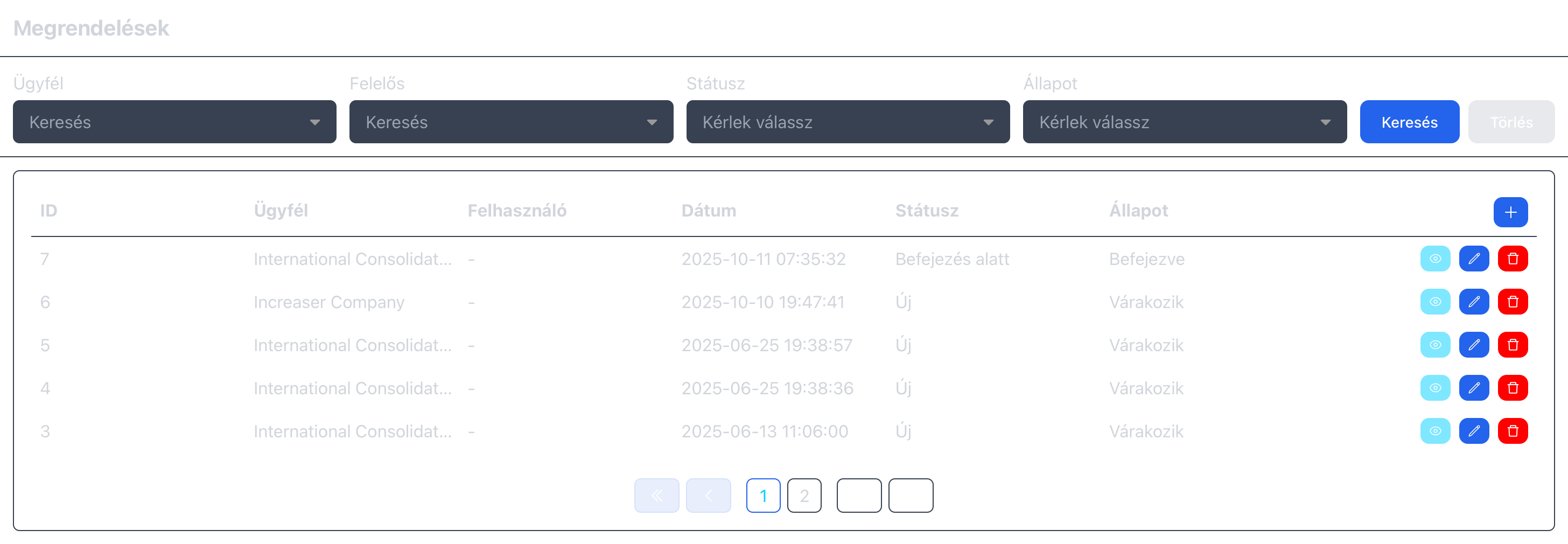
Details
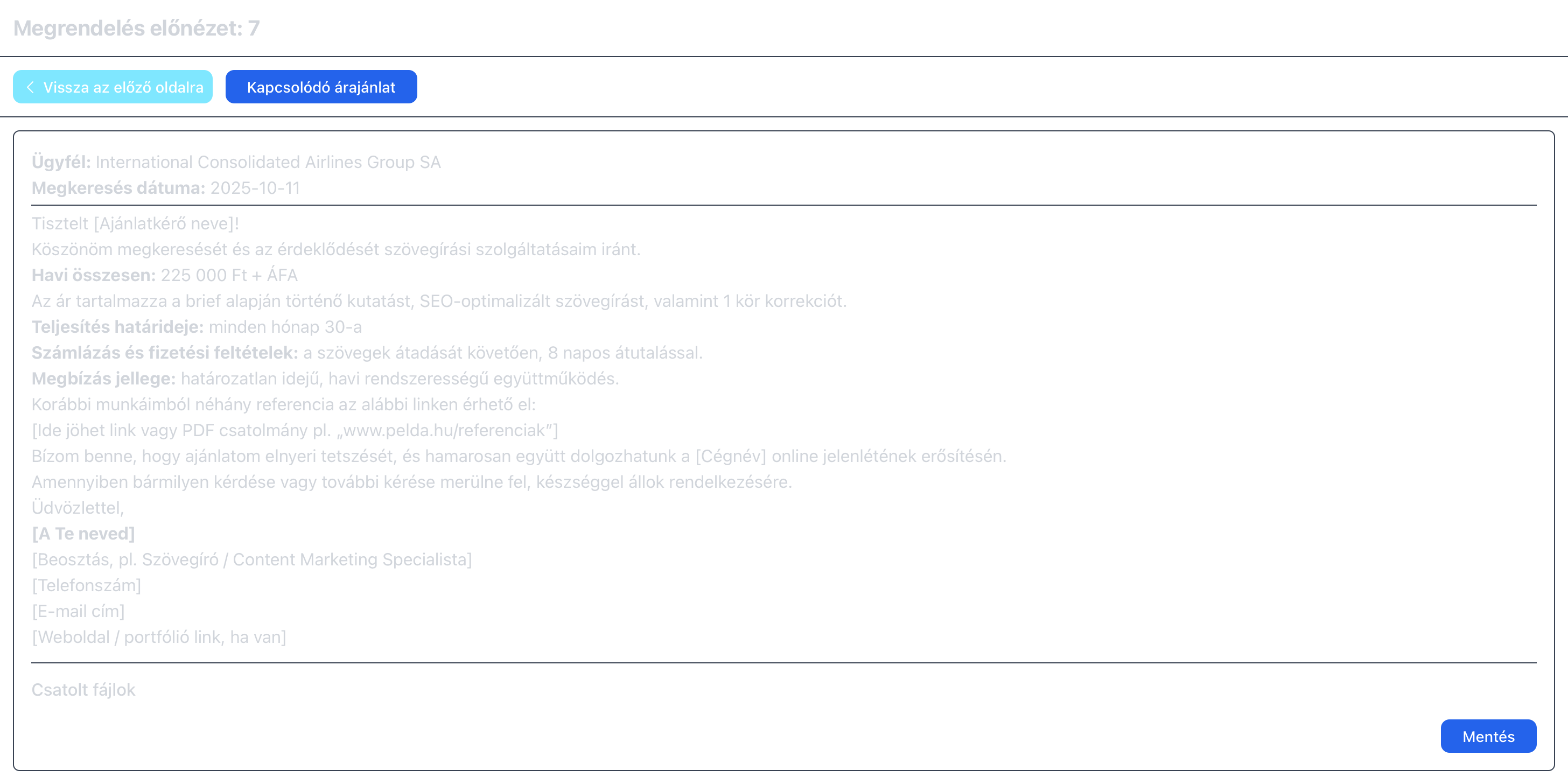
When viewing the details of an order, you’ll see a page like the one above.
This view is similar to the quotation details page, but it displays less information.
Here, you can see only the client’s name, the date the order was created, the order text, and any uploaded files.
At the top of the page, there’s an important button labeled “Related Quotation.”
Clicking it opens the quotation from which this order was generated.
The Save button works exactly the same way as it does for quotations — you can either save the order or print it.
Editing
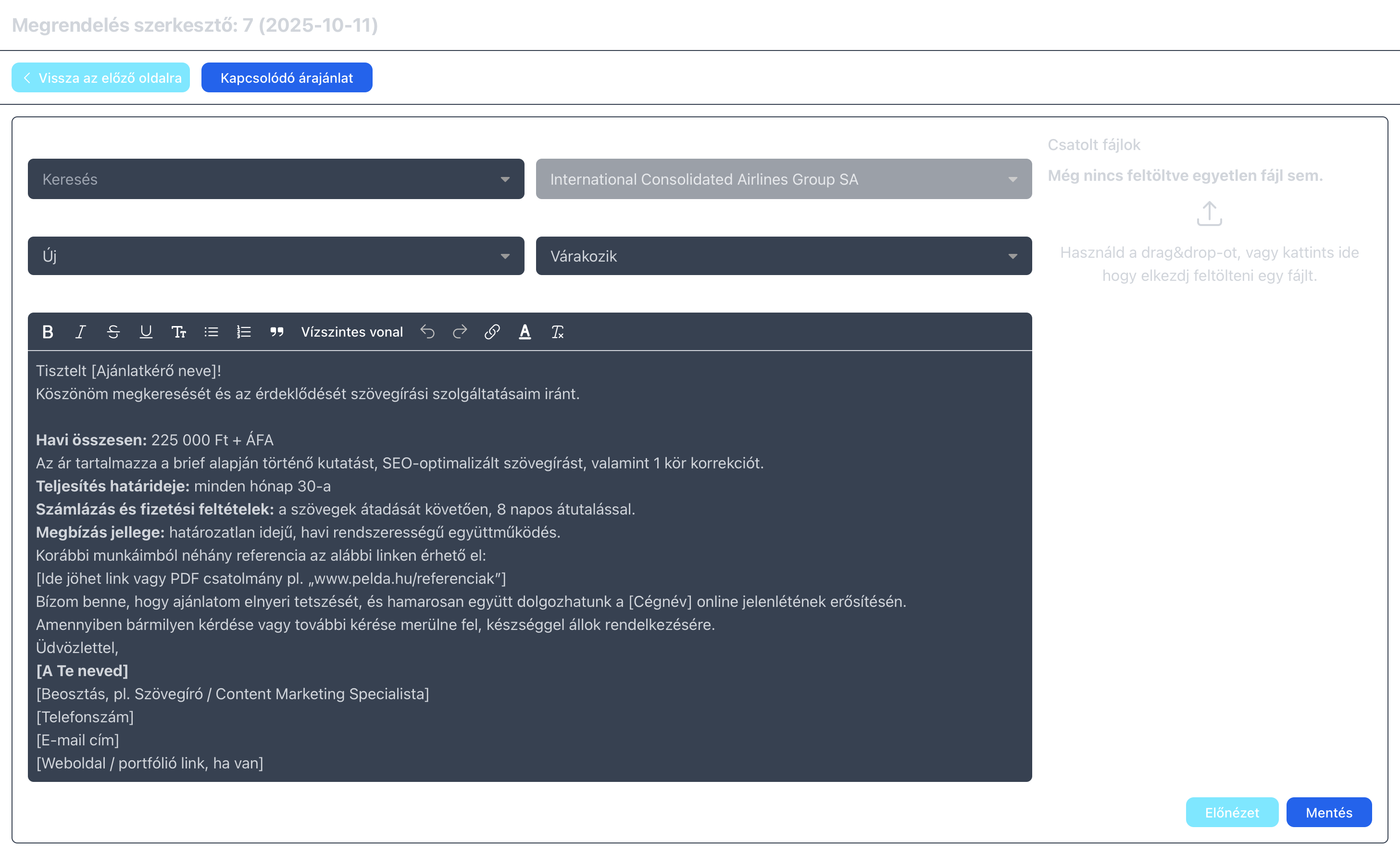
When you click the “Generate Order” button in a Quotation, this is the screen that appears —
but you’ll also see the same page if you click Edit from the order list.
This page closely resembles the quotation editing view, but with fewer editable fields.
For example, you’ll no longer find “Client Request” or “Subject” fields here.
You can modify only the order text, its status, and the assigned user.
Of course, you can also upload additional files if needed.
It’s important to note that the order automatically inherits the text you wrote in the quotation.
However, the two are not linked — you can safely modify the order text without affecting the original quotation.
Like quotations, orders only have a status, but with different values:
- Draft: the order is still being prepared,
- Sent: the order has been sent to the client,
- Approved/Signed: the client has approved or signed the order,
- Cancelled: the order has been cancelled,
- In Progress: the order is being fulfilled,
- Completed: the order has been fulfilled.