Calendar
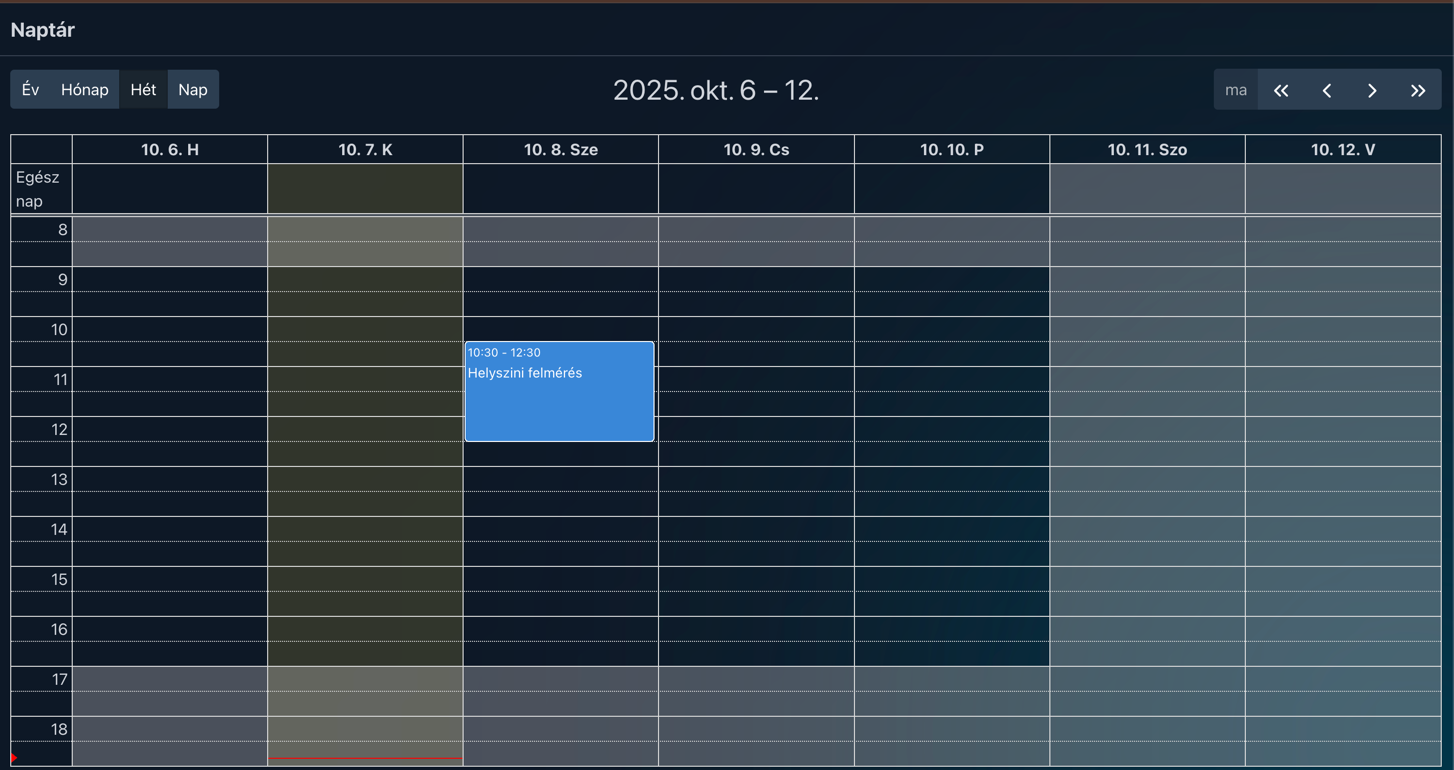
Several calendar views are available: daily, weekly, monthly, or yearly.
You can switch between them in the top left corner of the calendar.
In the top right corner, you can move forward or backward according to the selected view.
For example, if you are in weekly view and click the single left arrow button, you move back one week.
The double-arrow buttons jump forward or backward by one year.
You can add several types of events to the calendar:
- private events
- events where you can associate other users or even entire departments
- or events linked to clients
You can also specify a location where the event will take place, set whether it lasts all day, and add a short title and description — so that invitees (or you, if there are none) know what to prepare for.
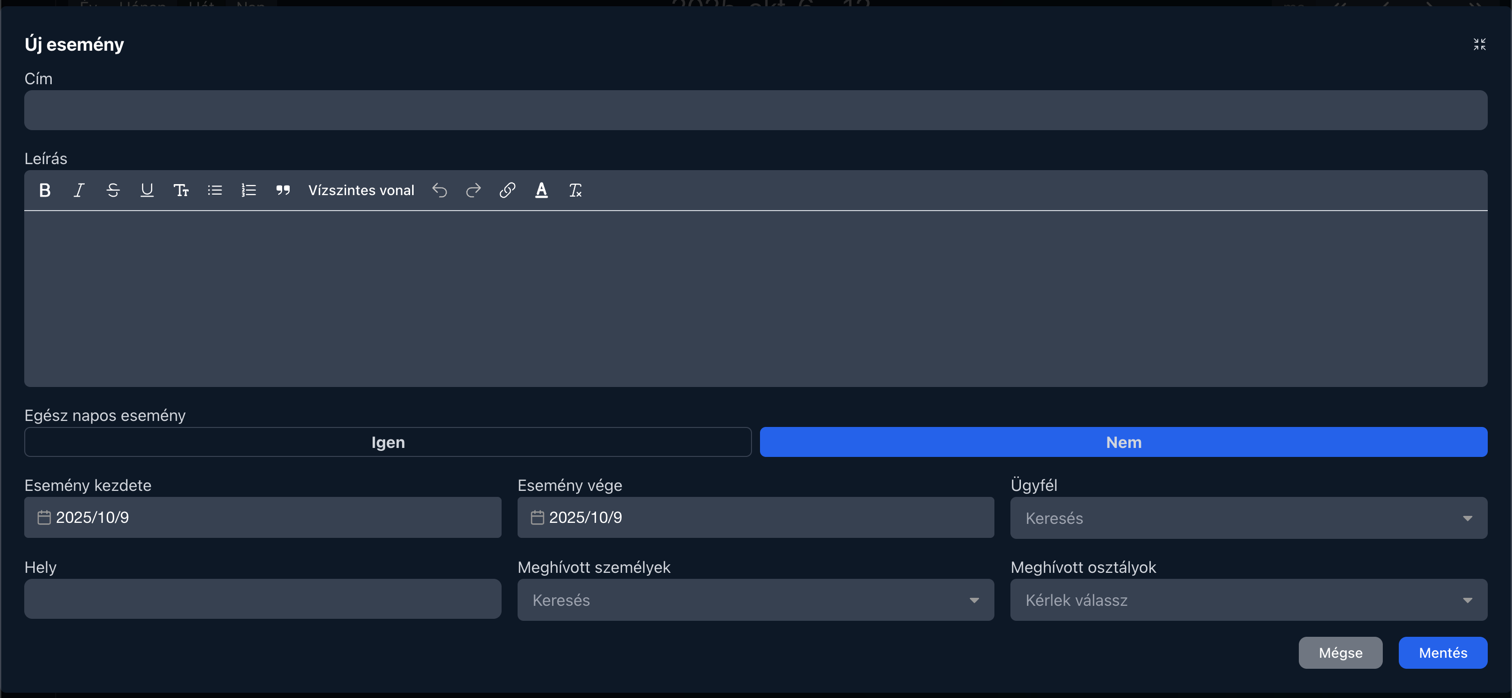
The event you create will appear in the calendar, and it will also be displayed on the homepage, although only events for the next two days are shown there in a simplified format.
Additionally, entries are also displayed on the client page — naturally, only those events that have clients linked to them.
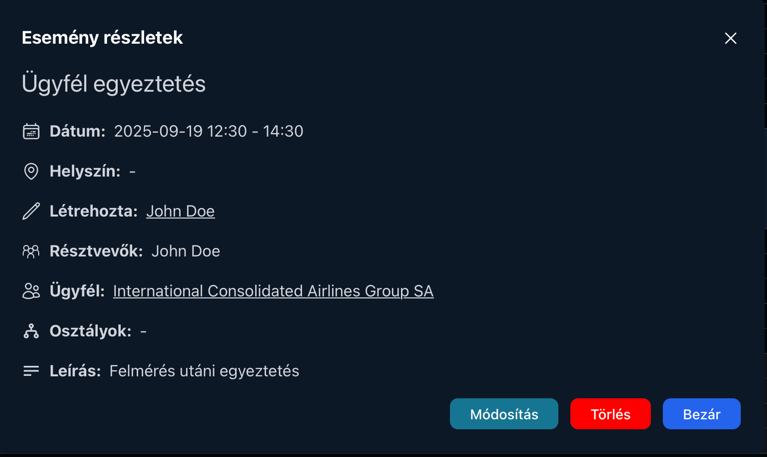
Clicking on a specific calendar entry opens a window with detailed information about that event.
Calendar integration (for example, displaying your Gmail calendar events here) is not yet available — this feature will be added in a future update.