A built-in CRM calendar, so no appointment slips through

Meetings, site visits and deadlines in one shared calendar, linked to clients and colleagues

Free Trial
Hand marking a date on a paper calendar with a pen

Why keep your calendar in the CRM?

When appointments live in personal calendars, messages and sticky notes, no one sees the full picture of who works where and when – and a forgotten meeting or a double booking costs you the client's trust.

CoreCRM's calendar is your team's shared calendar: you can link colleagues, whole departments and a client to an event, and client-linked appointments also appear on the client's profile. That way every meeting sits right next to the rest of your client data.
Three steps to going live

  1. 1

    Sign up

    A 30-day trial with no card details. The system is ready to use right after registration.

  2. 2

    Bring your data over

    Clients, products and services can be imported from Excel or your previous CRM, at no extra cost.

  3. 3

    Configure and go live

    Set up roles, departments, your email account and invoicing, then start working.

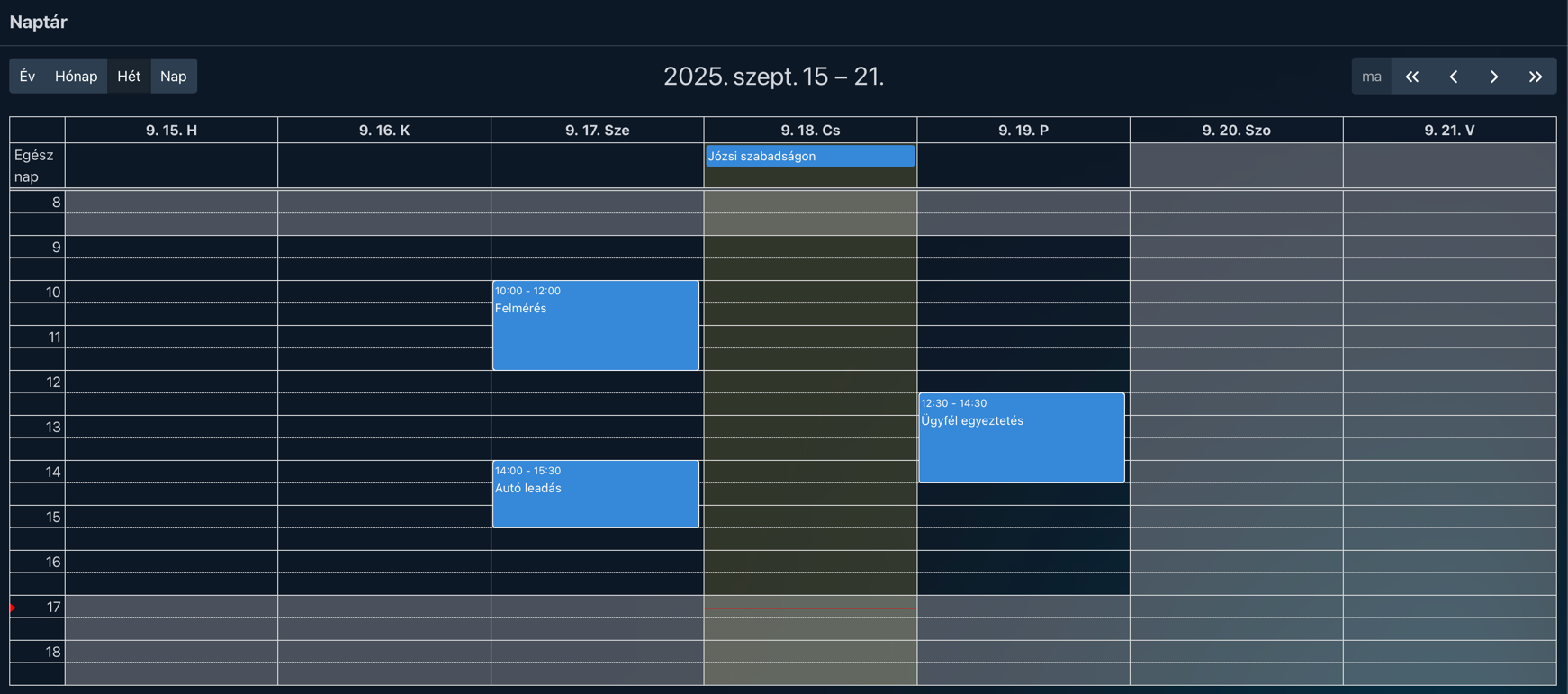
Weekly calendar view with client meetings and an all-day event

Day, week, month or year view

Switch between views with one click, and use the arrows to move from period to period – or jump a whole year forward or back. Plan next week just as easily as you look back at when you last visited a client.

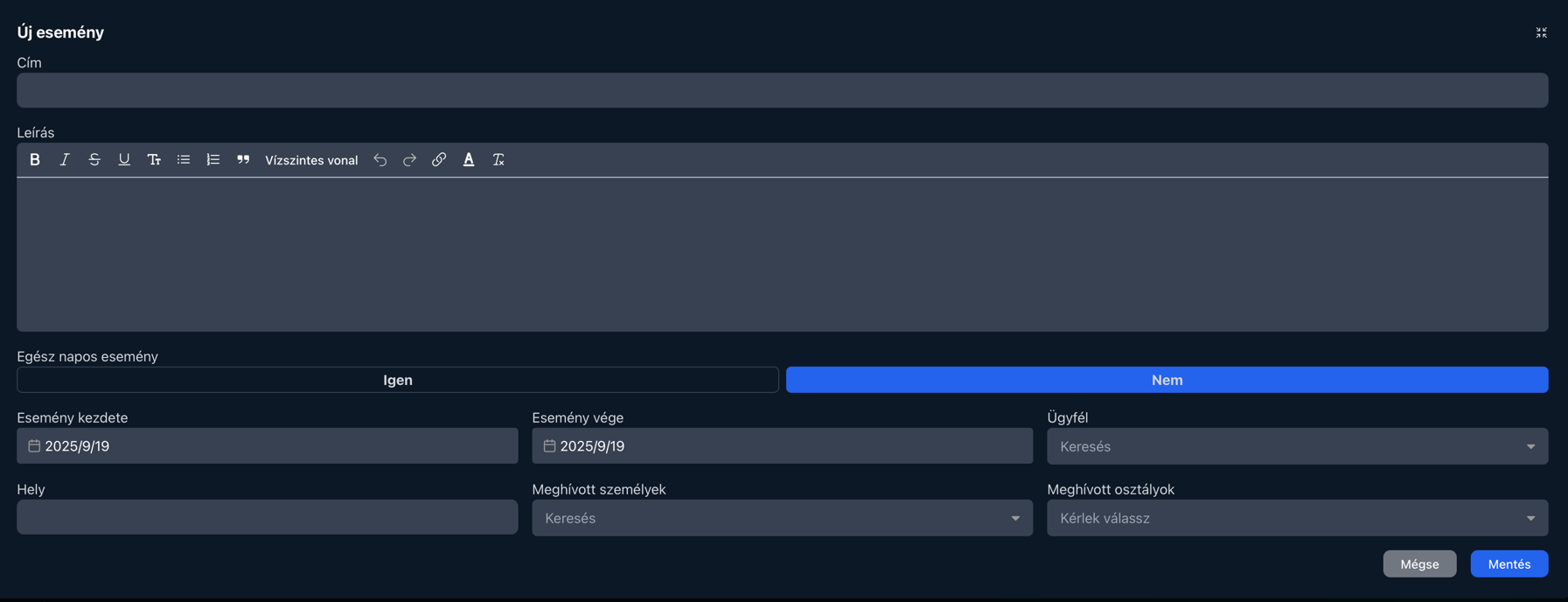
New calendar event form with time, client, location, invited people and departments

Create events with all the details

An event can have a title, a formatted description, start and end times, a location and a client, or it can be added as an all-day event. Besides individual colleagues, you can invite entire departments – the whole team is notified about a department-wide event at once – and you can attach a checklist to the event.

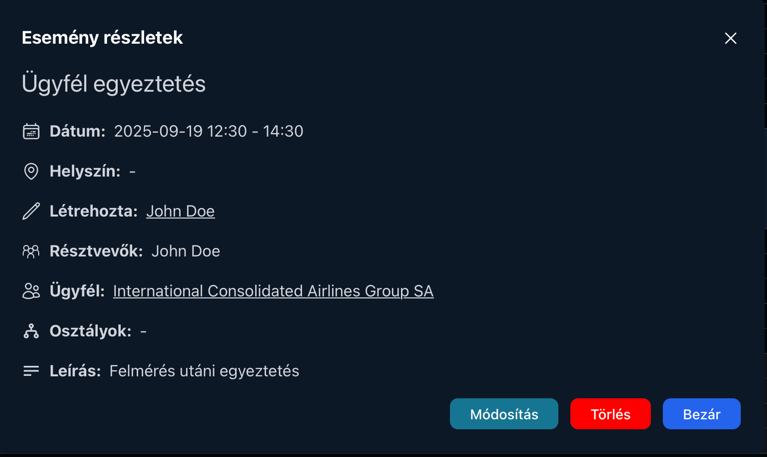
Calendar event details: time, participants, linked client and descriptionList of upcoming events

Every detail in one click

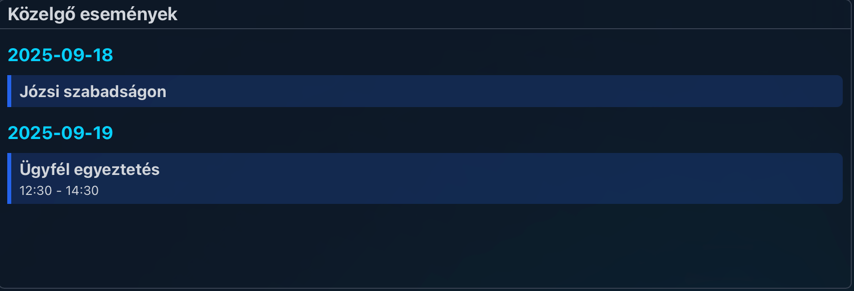
Click an event to see its time, location, participants, linked client and description, and edit or delete it from there. Events for the next two days also appear on the dashboard, and client-linked appointments can be found on the client's profile later.

Real-world examples

How teams organize their appointments in CoreCRM

On-site survey

The surveyor's calendar shows the time and location, and the client's profile keeps a record of when they were there.

Participants:
Surveyor
Linked to:
Client and checklist

Team meeting

Invite the whole department to the weekly meeting in one step, and everyone gets notified.

Participants:
Entire department
Linked to:
Internal event, no client

Holidays and absences

Mark who's away as an all-day event, so scheduling holds no surprises.

Participants:
The colleague concerned
Linked to:
All-day event

Client meeting

Record the follow-up meeting after a quote, linked to the client, so the salesperson and the installer see the same appointment.

Participants:
Salesperson and installer
Linked to:
Client

How the 30-day trial works

  • No card details: Signing up does not ask for any payment information.
  • The whole system: Every feature is available during the trial - you are not getting a cut-down version.
  • The whole team: You can invite your colleagues too, so you can decide based on real use.
  • No automatic charge: Without payment details no subscription starts on its own when the trial ends.
  • Your data stays: If you subscribe, you carry on with the data you entered during the trial.
Free Trial

Frequently asked questions about the calendar

Can I connect the CoreCRM calendar to Google Calendar?

Not yet: syncing external calendars is planned for a later release. Until then, you can manage your team's appointments in CoreCRM's shared calendar.

Can I create a private event?

Yes, an event can be private: if you don't invite anyone and don't link a client, you can use it as your own reminder.

Can I invite an entire department?

Yes. Besides individual colleagues, you can add entire departments to an event, so every team member is notified at once.

Where can I see my upcoming events?

In the calendar and on the dashboard, which lists the events of the next two days in a simplified view.

Can calendar events be created automatically?

Yes. With automated processes you can have a calendar event created automatically, for example when a new client is added or after a client note.

Share one calendar across your team

Try CoreCRM free for 30 days, no credit card required. We explain how to use the calendar in detail in our Knowledge Base.

Free Trial
This website uses cookies to provide personalized content, analyze traffic, and improve site functionality. By clicking the "Accept" button, you consent to the use of cookies.