Access management in your CRM: everyone sees what they need

Custom roles, departments and external access, set up in a few clicks

Free Trial
Shield and padlock icons floating above a hand, symbolizing data security

Why does access management matter?

As your team grows, it matters more and more who can see and change what. Not every colleague needs access to invoicing, company settings or every client's data: access that's too broad leads to mistakes and data protection risks, while access that's too narrow slows work down.

In CoreCRM you can create your own roles with permissions selected module by module, and assign them to individual users or entire departments. That way a new colleague sees exactly what they need from day one – no more, no less.
Three steps to going live

  1. 1

    Sign up

    A 30-day trial with no card details. The system is ready to use right after registration.

  2. 2

    Bring your data over

    Clients, products and services can be imported from Excel or your previous CRM, at no extra cost.

  3. 3

    Configure and go live

    Set up roles, departments, your email account and invoicing, then start working.

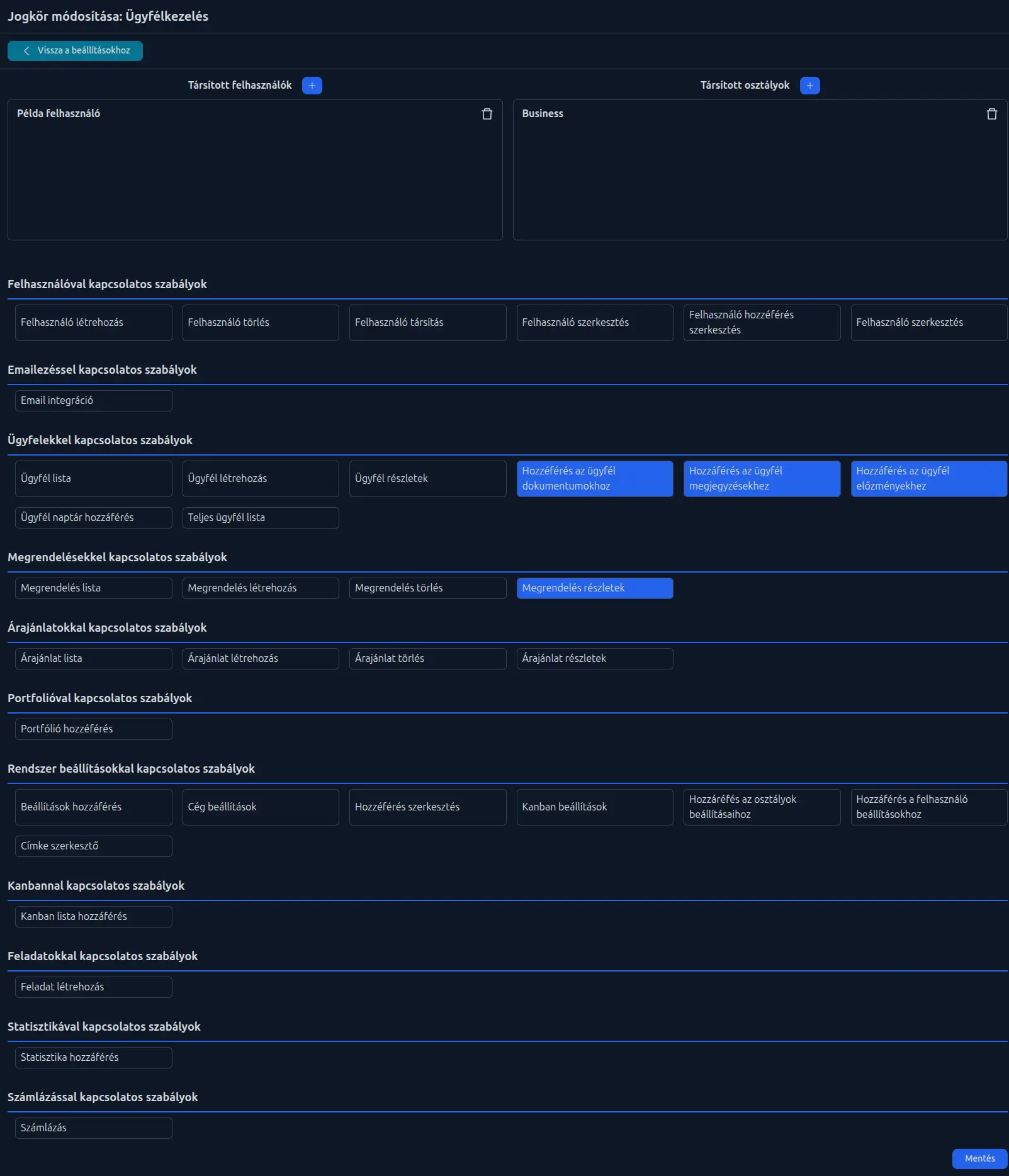
Editing a role: assigned users and departments, with permissions grouped by module

Custom roles, module by module

Create as many roles as you need. Permissions are grouped by module – users, email, clients, quotes, orders, catalog, Kanban, tasks, statistics, invoicing and system settings – and you can grant or revoke them with a click. A role can be assigned to several users and departments at once.

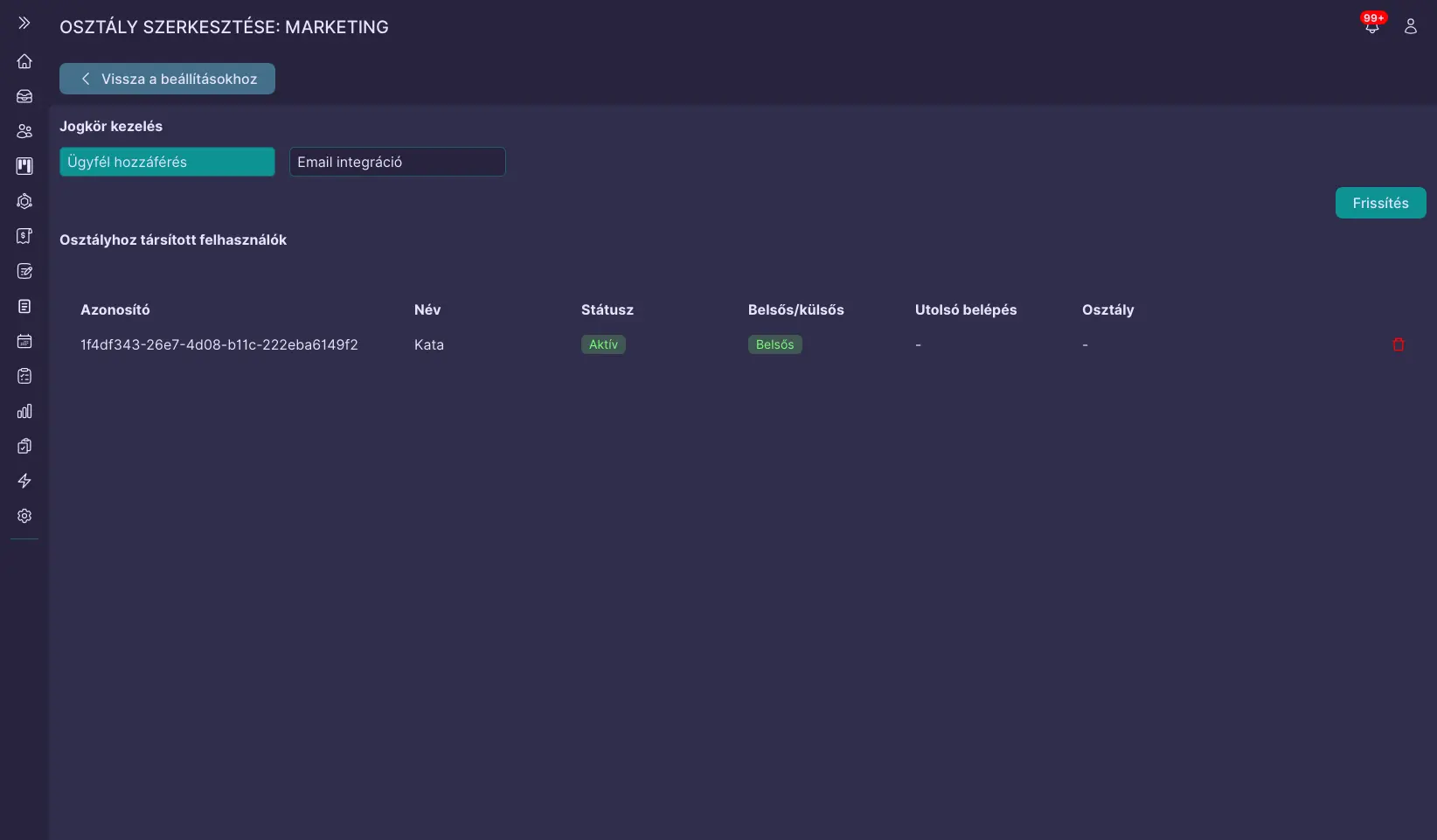
Department settings: the department's roles and its members

Roles at department level

There's no need to give every colleague permissions one by one: create departments – for example installers, salespeople or marketers – and assign the right roles to them. Department members receive these automatically, and a new colleague only needs to be added to the right department.

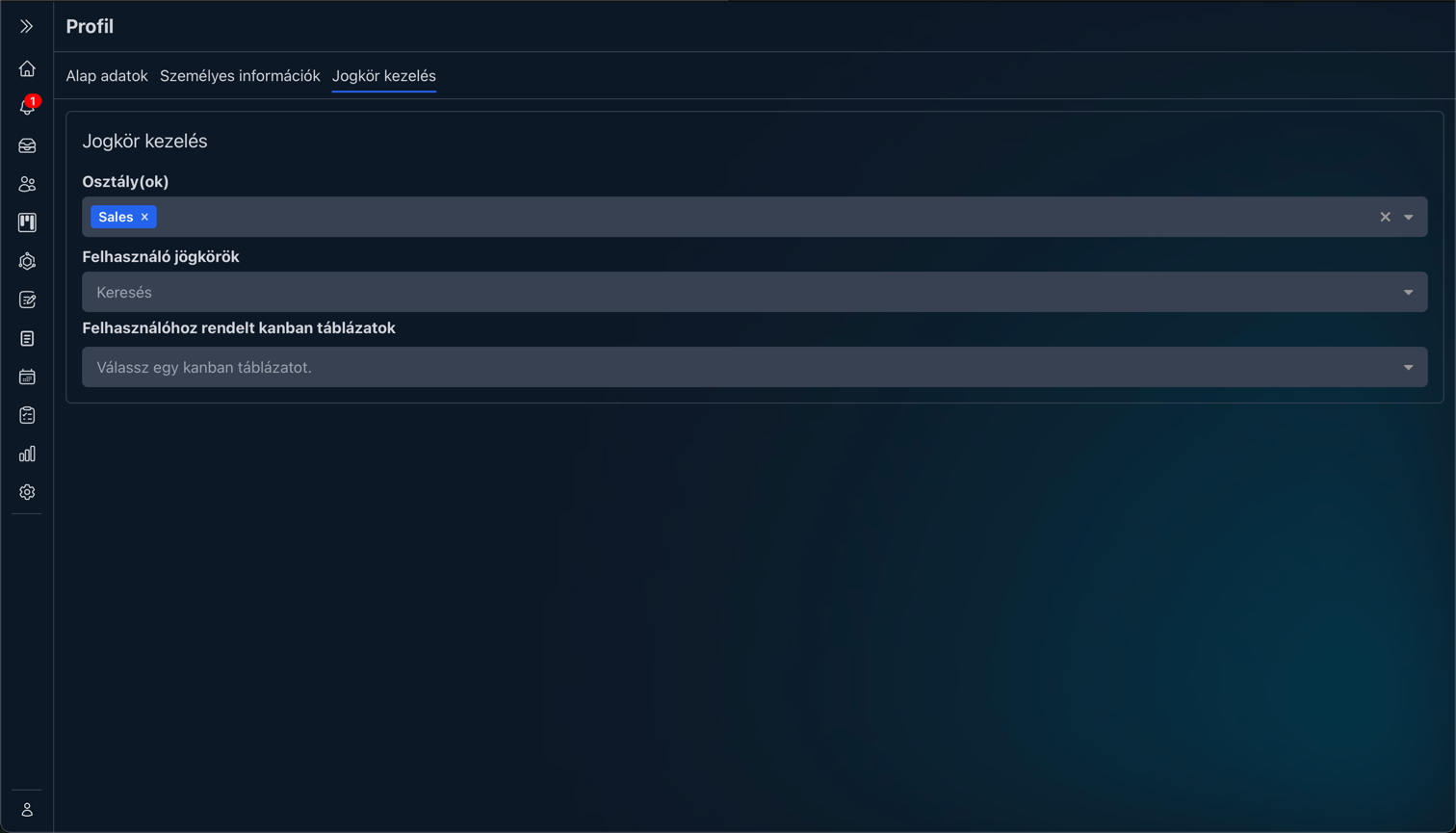
A user's access settings: departments, individual roles and assigned Kanban boards

Individual rights when the job calls for it

If a colleague needs more than their department provides, they can get extra roles on their profile or be added to several departments. This is also where you set which Kanban boards they can access.

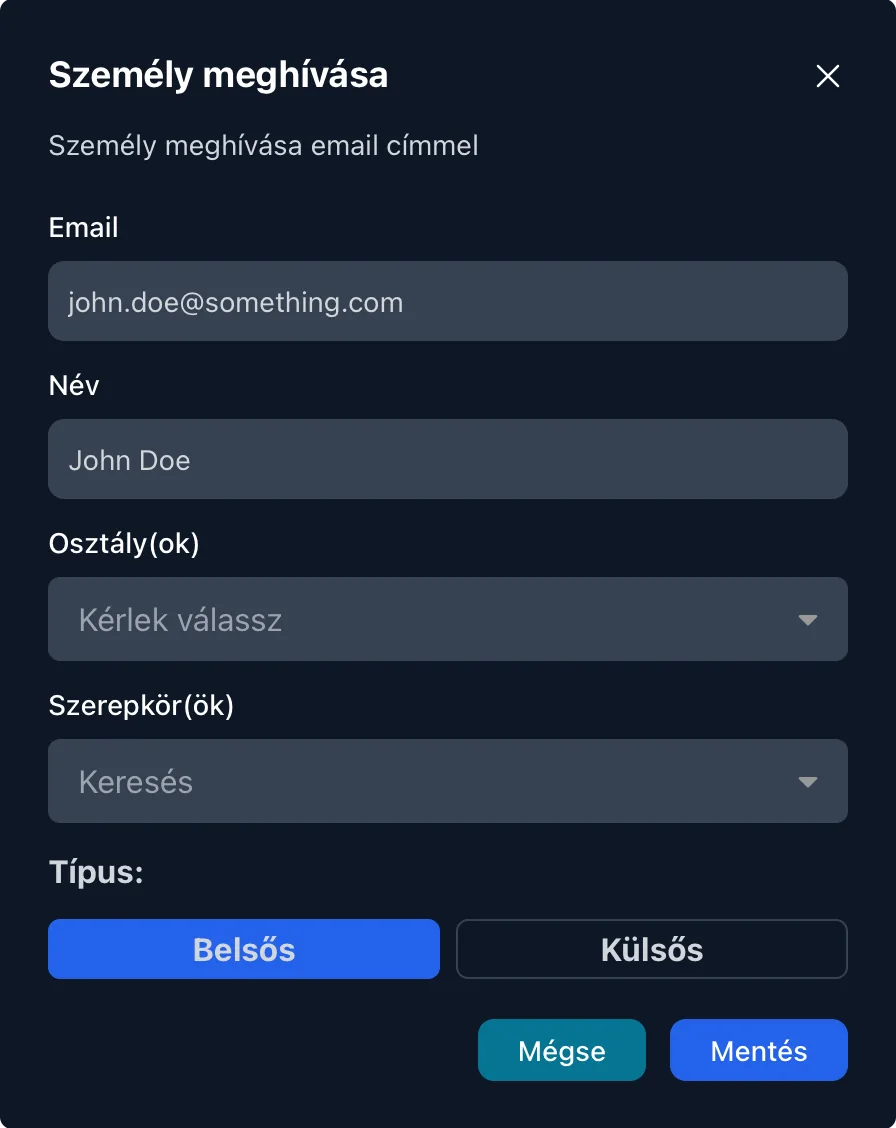
Inviting a user by email with department, role and an internal or external user type

Invitations and external staff

Invite a new colleague with their email address and name, and set their department and role right away. Subcontractors' staff can be added as external users with the subcontractor marked as their employer – and they, too, can only access what you give them permission for.

Real-world examples

How a small team can divide up access

Salesperson

Works with clients, quotes and orders, but doesn't touch company settings or permissions.

Assignment:
Sales department
Access to:
Clients, quotes, orders, catalog

Installer

Sees assigned tasks and the Kanban board, but not invoicing or pricing.

Assignment:
Installers department
Access to:
Kanban, tasks

Office administrator

Manages client data and invoices, and can also see statistics.

Assignment:
Office department
Access to:
Clients, invoicing, statistics

External subcontractor

Sees only the Kanban board and tasks meant for them, with no access to the company's internal data.

Assignment:
External user
Access to:
One Kanban board, assigned tasks

How the 30-day trial works

  • No card details: Signing up does not ask for any payment information.
  • The whole system: Every feature is available during the trial - you are not getting a cut-down version.
  • The whole team: You can invite your colleagues too, so you can decide based on real use.
  • No automatic charge: Without payment details no subscription starts on its own when the trial ends.
  • Your data stays: If you subscribe, you carry on with the data you entered during the trial.
Free Trial

Frequently asked questions about access management

How many roles can I create?

As many as you like. The system provides the list of permissions, and you put roles together from them with a click, then assign them to users and departments.

What is the Owner role?

The first user starts with the Owner role, which has access to everything. This role can't be edited, but it can be given to anyone who needs full access.

Can I give someone more rights than their department has?

Yes. On top of the roles inherited from the department, you can add extra roles on the user's profile or add them to several departments.

How can I manage a subcontractor's staff?

When inviting them, set the user type to External and select the subcontractor from your clients as their employer. External users can also only access what you give them permission for.

What should I do when a colleague leaves?

Their account can be deactivated with one click in the user list, and you can reactivate it later if needed.

Set up your team's access

Try CoreCRM free for 30 days, no credit card required. We explain step by step how to set up roles and departments in our Knowledge Base.

Free Trial
This website uses cookies to provide personalized content, analyze traffic, and improve site functionality. By clicking the "Accept" button, you consent to the use of cookies.