CRM automation for smoother client management

Set up your rules once and let the system handle the repetitive admin for you

Free Trial
Hands typing on a laptop beneath floating chart, client and gear icons

Why automate your CRM?

Running a business means countless small, repetitive steps: arranging a meeting after a new client comes in, recording the order once a quote is accepted, letting a colleague know when a task is done. Each one takes only a few minutes, but together they add up to hours – and one busy day is all it takes for something to slip through the cracks.

CoreCRM's automated processes take these steps off your plate. You choose which event the system should watch for, under what conditions it should act and what it should create – the CRM does the rest, with no programming required.

Three steps to going live

  1. 1

    Sign up

    A 30-day trial with no card details. The system is ready to use right after registration.

  2. 2

    Bring your data over

    Clients, products and services can be imported from Excel or your previous CRM, at no extra cost.

  3. 3

    Configure and go live

    Set up roles, departments, your email account and invoicing, then start working.

Automation rule basics: name, description and the “Client received a note” trigger

You decide what starts the process

The trigger can be, for example, a new or updated client, a tag or note being added, a Kanban card changing columns, a quote or order changing phase, a completed task or a ticked checklist step. Rules only run for events that happen after they are created, never touch your existing data, and don't start until you switch them on.

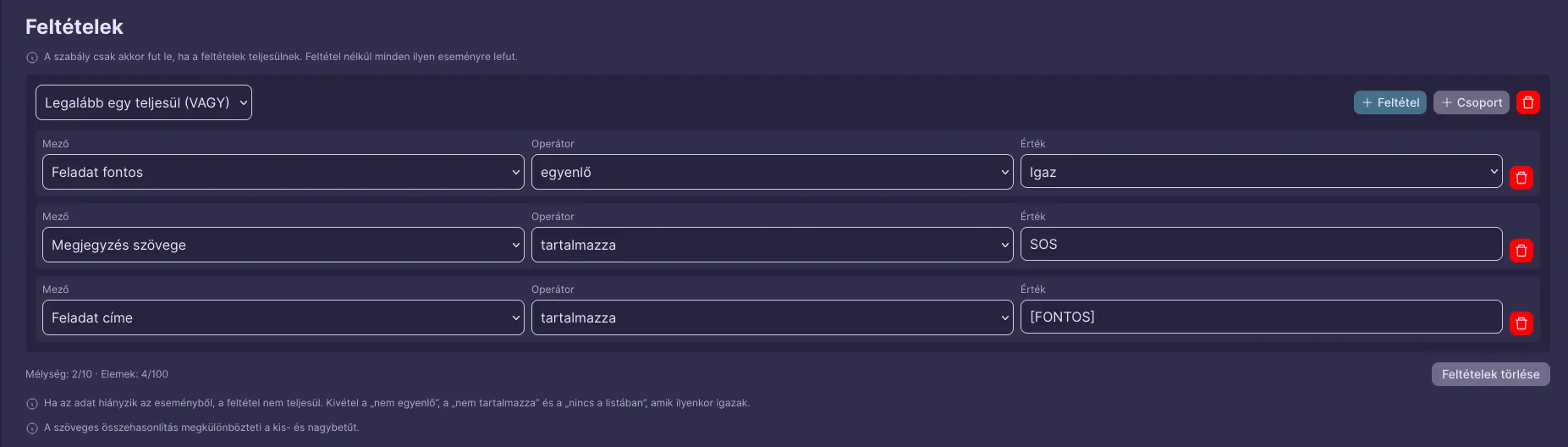
Condition group with OR logic checking task priority, note text and task title

It only runs when it really should

Conditions help you avoid unnecessary or accidental runs. For example, you can set a rule to act only if a note contains the word “SOS” or if a task has been marked as important. Conditions can check whether a field equals a value, contains a piece of text or appears in a list, and by grouping them with AND/OR logic you can build even the most complex rules.

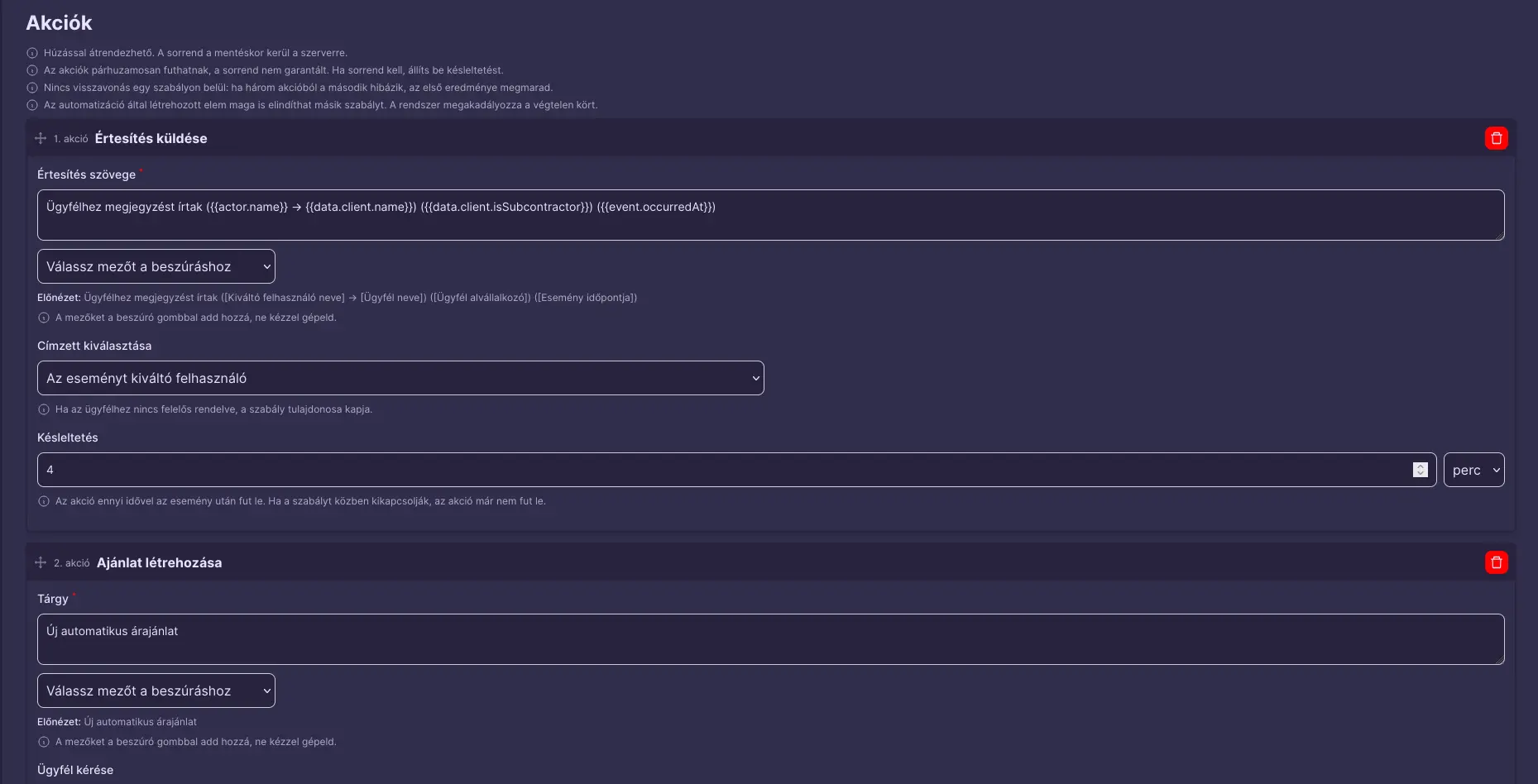
Configuring actions: a notification with inserted fields and a delay, followed by automatic quote creation

One event, several actions

When the conditions are met, the system can automatically create a quote or an order, a task, a Kanban card, a checklist or a calendar entry, and send notifications too. A rule can have several actions, and you can insert dynamic fields into the texts, such as the client's name, the time of the event or the name of the user who triggered it. Actions can also be delayed, so a reminder can go out a few minutes after the event.

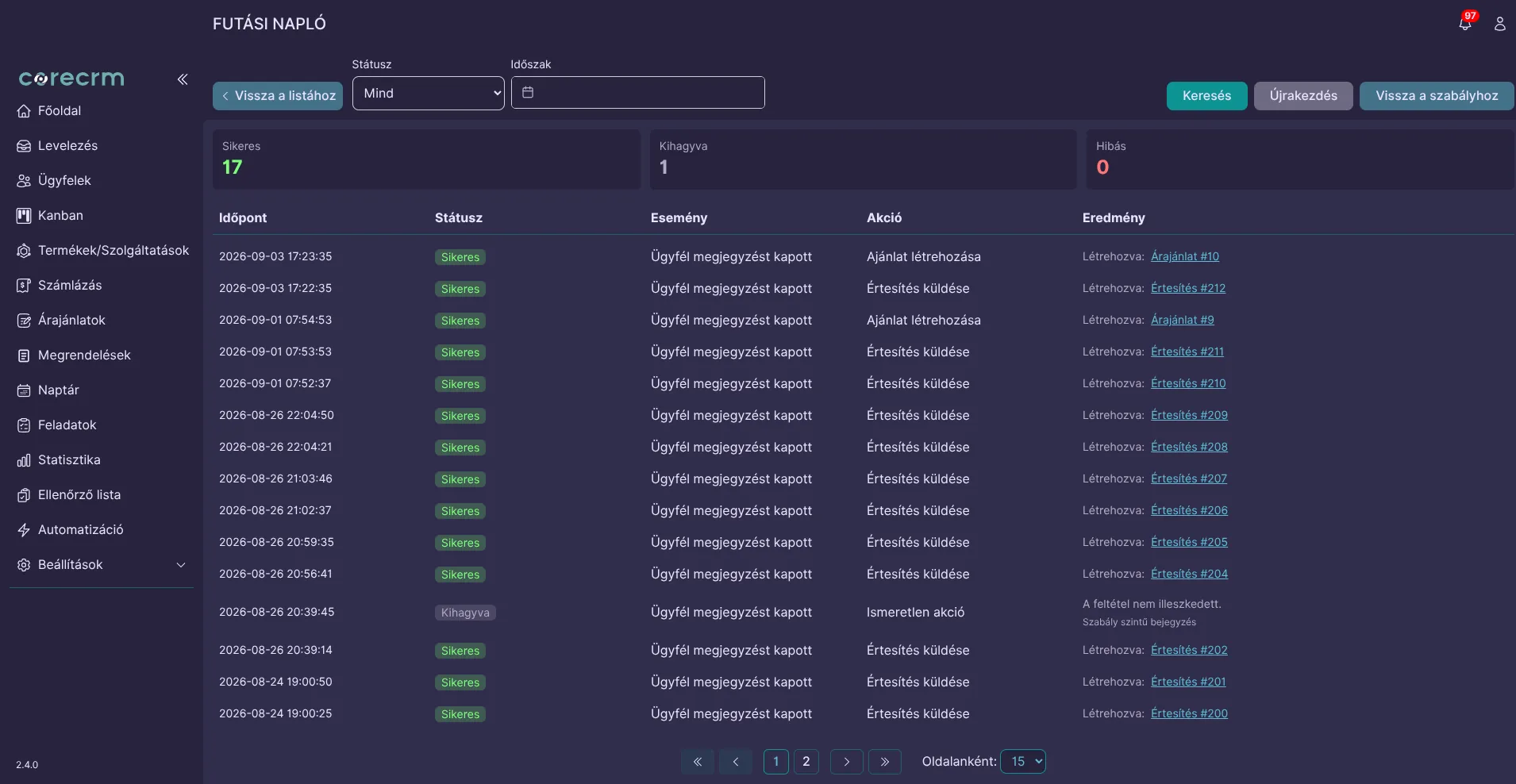
Automation run log listing successful, skipped and failed runs with the quotes and notifications created

Every run is traceable

You'll never have to wonder how something ended up in the system. Every rule has its own run log: you can see when it ran, whether it succeeded or was skipped because a condition wasn't met, and open the quote or notification it created with a single click. An automatically created item can even trigger another rule – the system prevents infinite loops.

Real-world examples

A few rules you can set up in minutes

Onboarding new clients

As soon as you add a new client, an introductory meeting appears in the calendar along with an onboarding checklist, so every client's first steps follow the same path.

Trigger:
New client created
Action:
Calendar event and checklist

From quote to order

When a quote changes phase, the system can create the order and assign a task to the colleague responsible for fulfillment – and conditions let you decide which phase triggers it.

Trigger:
Quote phase changed
Action:
Order and task

Urgent client flag

If someone adds a note containing “SOS” to a client, the user responsible for that client is notified immediately, so urgent requests don't get lost among everyday tasks.

Trigger:
Client received a note
Condition:
The note text contains “SOS”
Action:
Send notification

Kicking off the next step

When every step of a survey or handover checklist is completed, the next task – issuing the invoice, for example – is created automatically.

Trigger:
Checklist completed
Action:
Create task

How the 30-day trial works

  • No card details: Signing up does not ask for any payment information.
  • The whole system: Every feature is available during the trial - you are not getting a cut-down version.
  • The whole team: You can invite your colleagues too, so you can decide based on real use.
  • No automatic charge: Without payment details no subscription starts on its own when the trial ends.
  • Your data stays: If you subscribe, you carry on with the data you entered during the trial.
Free Trial

Frequently asked questions about automation

Do I need to know how to code to set up automations?

No. You build each rule in a form: pick the trigger event, then set the conditions and actions. Dynamic fields, such as the client's name, are inserted into the text from a list.

Will a new rule run on my existing data?

No. A rule only runs for events that occur after it has been created and never modifies previously recorded data. New rules are created switched off and only start once you activate them.

Can rules be chained together?

Yes. An item created by an automation can itself trigger another rule, so you can build multi-step processes. The system makes sure no infinite loop can occur.

How do I know what a rule has created?

Every rule has a run log showing successful, skipped and failed runs with timestamps, along with the items created. A status indicator in the rule list also flags any rule that has a problem.

Does automation cost extra?

No, there is no additional fee. CoreCRM offers every feature, including automation, in a single plan for 10,000 HUF per month with unlimited users. You can also try it free for 30 days.

Automate your first process today

Try CoreCRM free for 30 days, no credit card required. We walk you through the setup step by step, with screenshots, in our Knowledge Base.

Free Trial
This website uses cookies to provide personalized content, analyze traffic, and improve site functionality. By clicking the "Accept" button, you consent to the use of cookies.