Project management with Kanban boards right inside your CRM

See at a glance where work stands – no separate project management tool needed

Free Trial
Team planning a flow chart with sticky notes around a table

Why track work on a Kanban board?

When tasks live in emails, messages and notebooks, it's hard to tell what's done, what's stuck and whose turn it is. Separate project management tools are cut off from your client data, too, so the same information has to be kept in two places.

CoreCRM's Kanban boards are part of the CRM: task cards move from column to column while staying linked to the client, a checklist and the colleague responsible. You see where work stands at a glance – with no third-party tool and no double admin.
Three steps to going live

  1. 1

    Sign up

    A 30-day trial with no card details. The system is ready to use right after registration.

  2. 2

    Bring your data over

    Clients, products and services can be imported from Excel or your previous CRM, at no extra cost.

  3. 3

    Configure and go live

    Set up roles, departments, your email account and invoicing, then start working.

Kanban template settings with custom columns and colored tags

A board built around your process

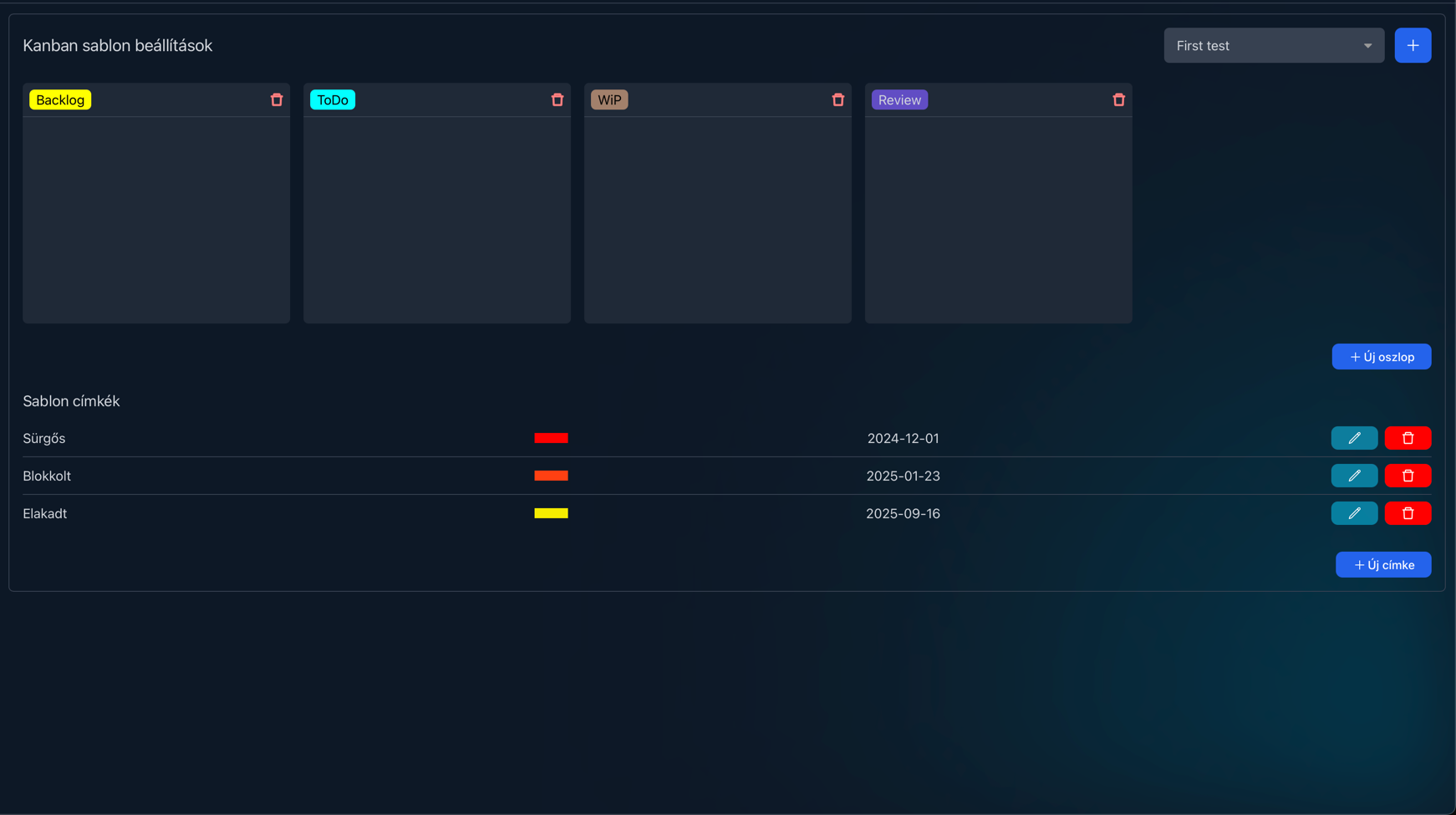
Every board can have its own columns and tags – for example New, In progress, Review and Done – and you can reorder the columns by dragging them. In the board settings you also choose which users and departments can see it, while creating and editing boards can be tied to a permission.

Kanban board with a task card being dragged to another column

Familiar and drag-and-drop simple

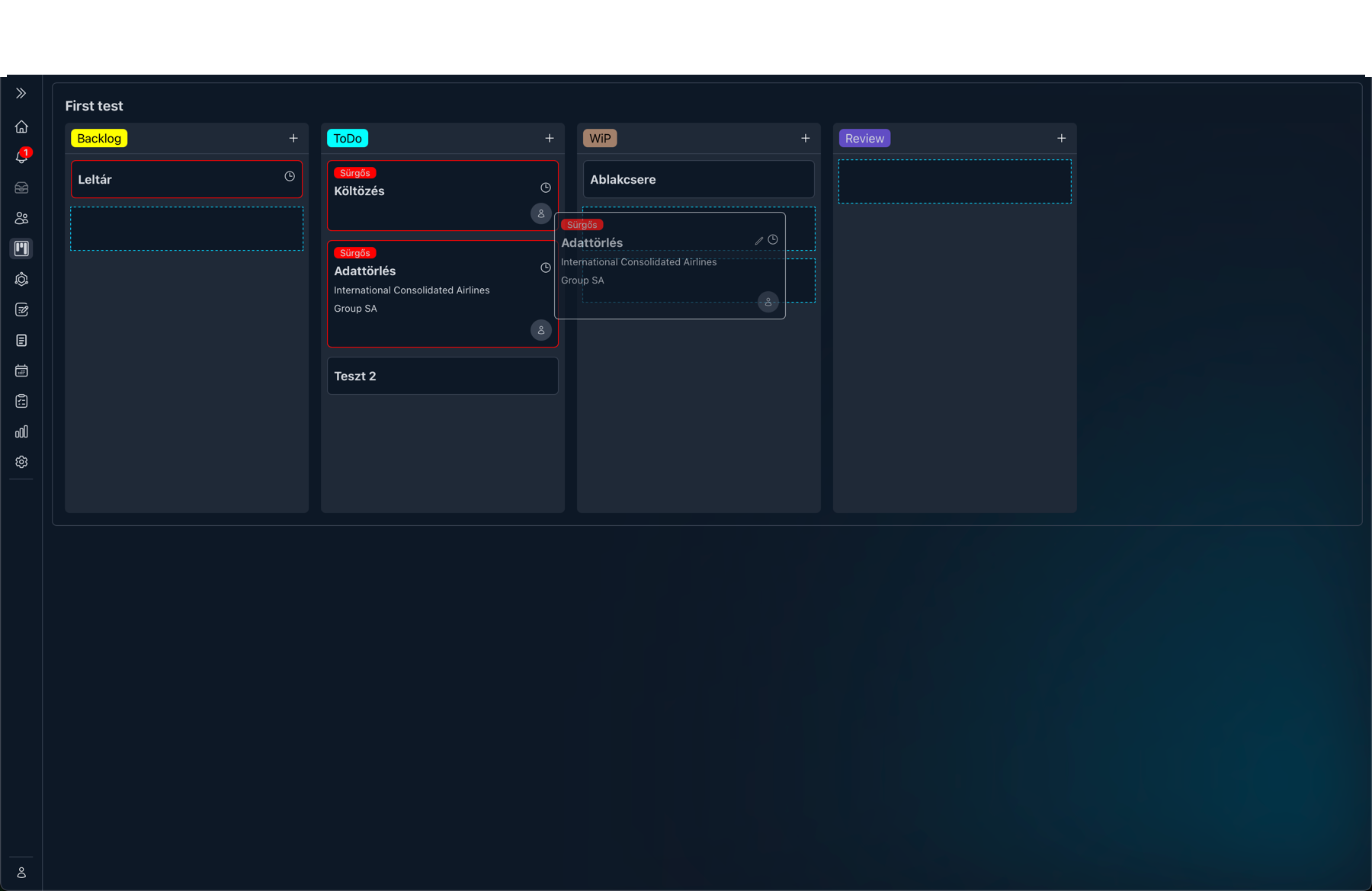
There's nothing new to learn: you drag cards from column to column, just as you would on a real board. The border of cards with a deadline shows how urgent they are – red within 5 days, yellow between 5 and 10 days – while tags and the assignee icon tell you at first glance what matters and who has it.

Kanban task detail view with a checklist, related tasks and comments

Every detail on one card

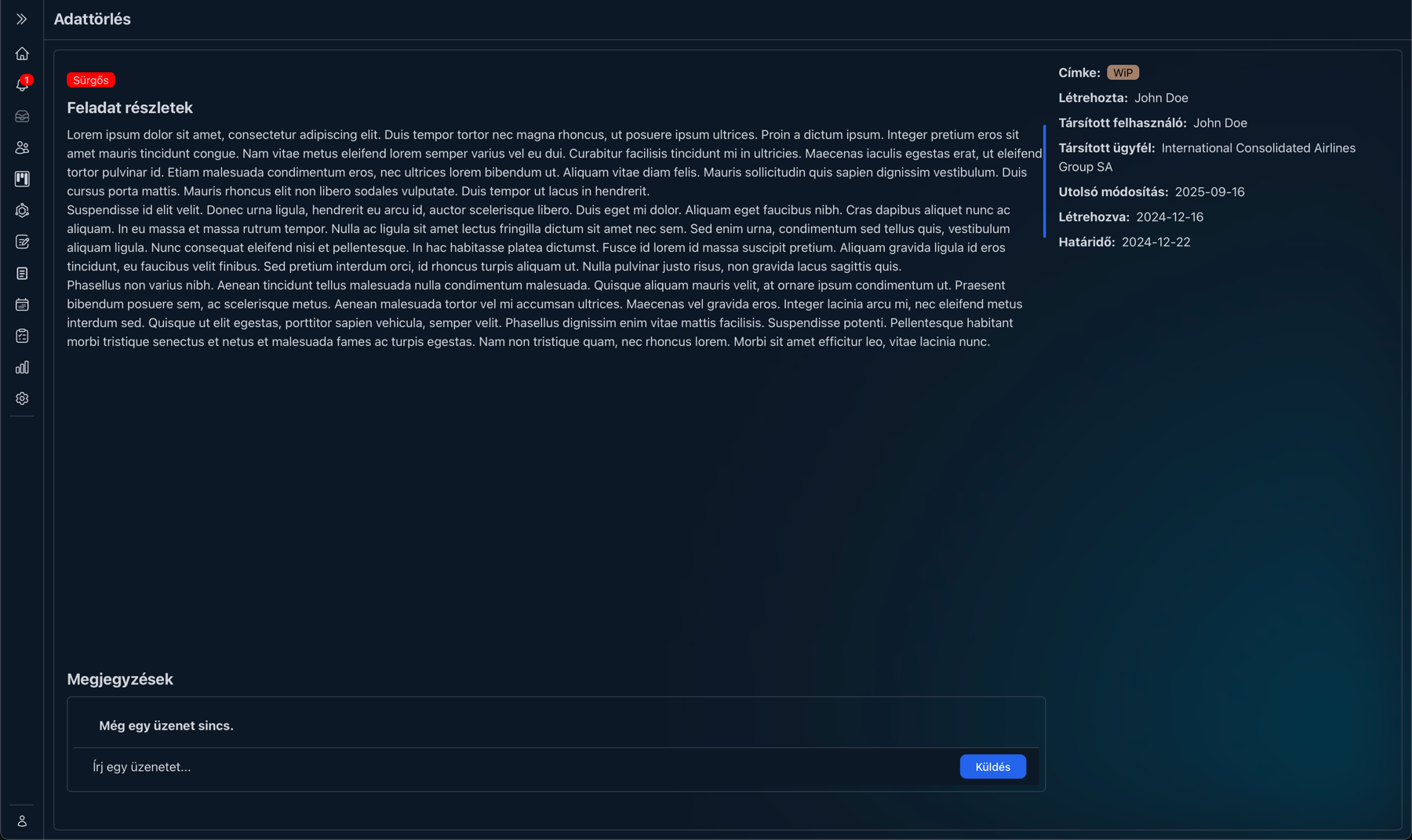
Click a card to see its details in a pop-up, or open it on its own page. You'll find the description, deadline, assignee, creator, linked client, related and blocking tasks and attached checklists, and you can add comments at the bottom.

Client profile showing the Kanban tasks linked to the client

Visible on the client's profile too

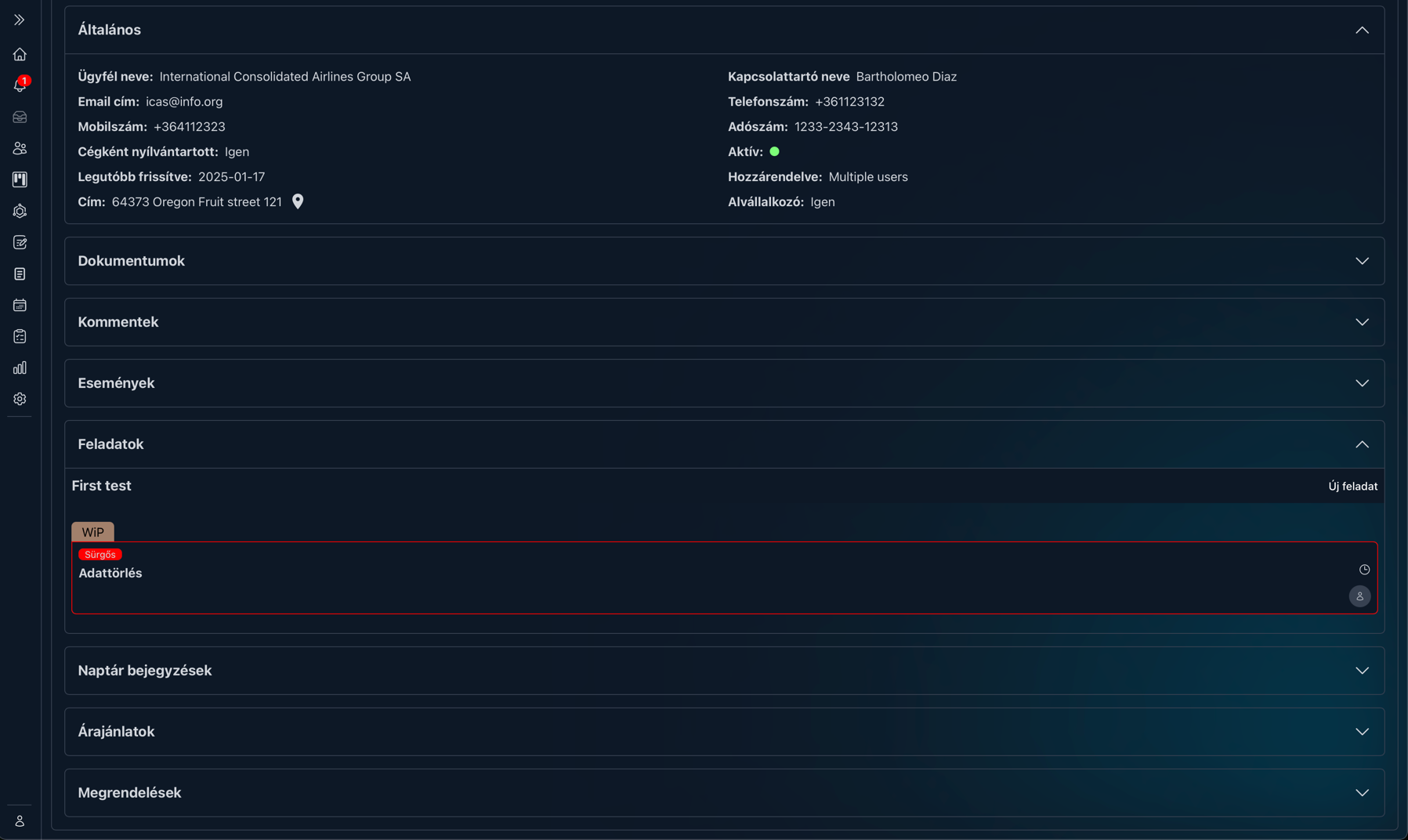
Kanban tasks linked to a client also appear on the client's profile, so you can see their quotes, orders and calendar entries in one place – along with where the work stands. If the client has tasks on several boards, you can switch between them there too.

Real-world examples

A few boards you can set up in minutes

Moving company

Every job becomes a card that moves from the survey to moving day column by column, while deadline colors warn you about upcoming dates.

Columns:
Survey, Quote, Scheduled, Moving day, Done
Tags:
Urgent, Weekend

Building services installation

Air-conditioning and heating jobs have a client and a checklist attached to their cards, so installers can see what to do on site.

Columns:
Survey, Materials, Installation, Handover
Tags:
Warranty, Waiting for parts

Freight management

Delivery cards show the status from arrival to delivery, and the assignee icon shows which colleague is handling each one.

Columns:
New, Being arranged, On the road, Delivered
Tags:
Express, Return

Internal projects

Marketing, admin or development – each on its own board, visible only to the department involved.

Columns:
Ideas, To do, In progress, Review, Done
Tags:
Blocked, Stuck

How the 30-day trial works

  • No card details: Signing up does not ask for any payment information.
  • The whole system: Every feature is available during the trial - you are not getting a cut-down version.
  • The whole team: You can invite your colleagues too, so you can decide based on real use.
  • No automatic charge: Without payment details no subscription starts on its own when the trial ends.
  • Your data stays: If you subscribe, you carry on with the data you entered during the trial.
Free Trial

Frequently asked questions about Kanban boards

How many Kanban boards can I create?

As many as you need. Each board can have its own columns and tags, and a user can be assigned several boards and switch between them with a click.

Who can see each board?

In the board settings you choose which users and departments have access. Creating and editing boards can be tied to a permission.

How does the system show deadlines?

Cards with a deadline show a clock icon, and the card's border indicates urgency: red for deadlines within 5 days, yellow between 5 and 10 days.

What's the difference between a Kanban card and the Tasks menu?

Kanban cards move through the steps of a process on a board. The Tasks menu is for simple, standalone to-dos: a task can be assigned to several colleagues, and you can see who has already finished it.

Can I automate my Kanban board?

Yes. A rule can create Kanban cards and can also run when a card changes columns, gets an assignee or is created – for example to send a notification or create a checklist.

Make your team's work visible

Try CoreCRM free for 30 days, no credit card required. We explain how to set up and use boards in detail in our Knowledge Base.

Free Trial
This website uses cookies to provide personalized content, analyze traffic, and improve site functionality. By clicking the "Accept" button, you consent to the use of cookies.