Custom fields in your CRM, so every important detail has a place

Add your own fields to clients, quotes and orders, without a developer or extra fees

Free Trial
Magnifying glass with a check mark surrounded by document and checklist icons

Why do you need custom fields?

Every business cares about different details. A solar installer needs the roof type, an accountant the form of taxation, a repair service the serial number of the device. If these have no place in the CRM, they end up in comments, separate spreadsheets or people's heads, where nobody can find them when they are needed.

CoreCRM can be tailored to this too: you can add your own fields to clients, quotes and orders in a few clicks, without a developer. The fields appear on the usual forms, the system checks the values entered, and the value given for the client carries over to a new quote or order if the field appears there too.
How it works, in three steps

  1. 1

    Create the field

    On the Custom fields page, give the field a name and a type: text, number, date, dropdown, multi-select dropdown or checkbox.

  2. 2

    Set it up

    Choose whether it appears on clients, quotes or orders – or on all three – and whether it must be filled in.

  3. 3

    Fill it in

    From then on the field is on the forms you chose, and your team fills it in as part of the usual work.

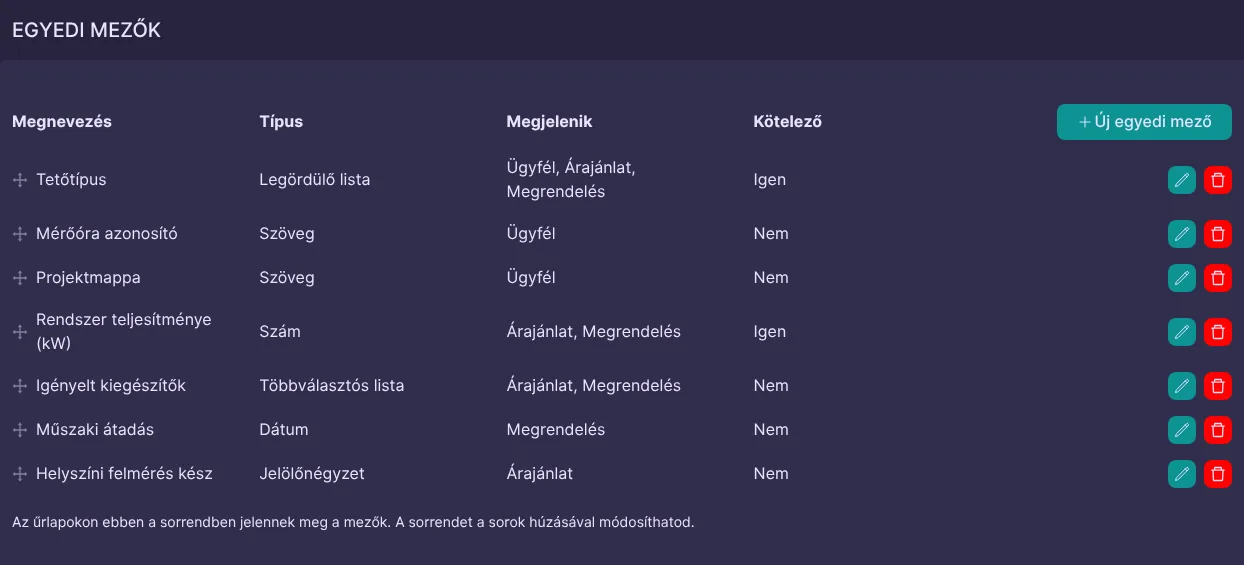
List of custom fields with their name, type, where they appear and the required flag

Your own fields in a few clicks

On the Custom fields page of the Settings menu you see all your fields in one list: their name, their type, where they appear and whether they are required. Drag the rows to set the order, and the forms show the fields in the same order. Editing them can be tied to a separate permission, so not everyone can change the settings.

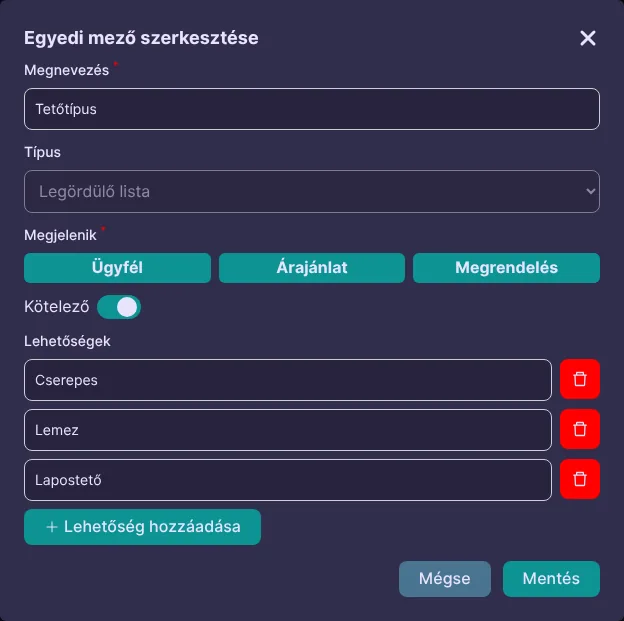
Editing a custom field: name, type, where it appears, required switch and options

Six field types, validated data

A text field can expect an email address, a phone number or a web address, numbers and dates can have lower and upper limits, text can have a length limit, and a multi-select dropdown can set how many options may be selected. With dropdowns everyone uses the same few values, so the same detail does not get written three different ways. A form cannot be saved without its required fields, and the system refuses invalid values.

Custom fields of a new quote with the note that an empty field takes the value of the client

No need to enter the same data twice

If a field appears on both clients and quotes, a new quote's empty field takes the value given for the client. An order does the same with the quote, or with the client when there is no quote. A field shown on clients only stays on the client. If a job needs a different value, just enter it, and it replaces the inherited one. The value is copied when the record is created: if you change the client's data later, existing quotes and orders stay as they are.

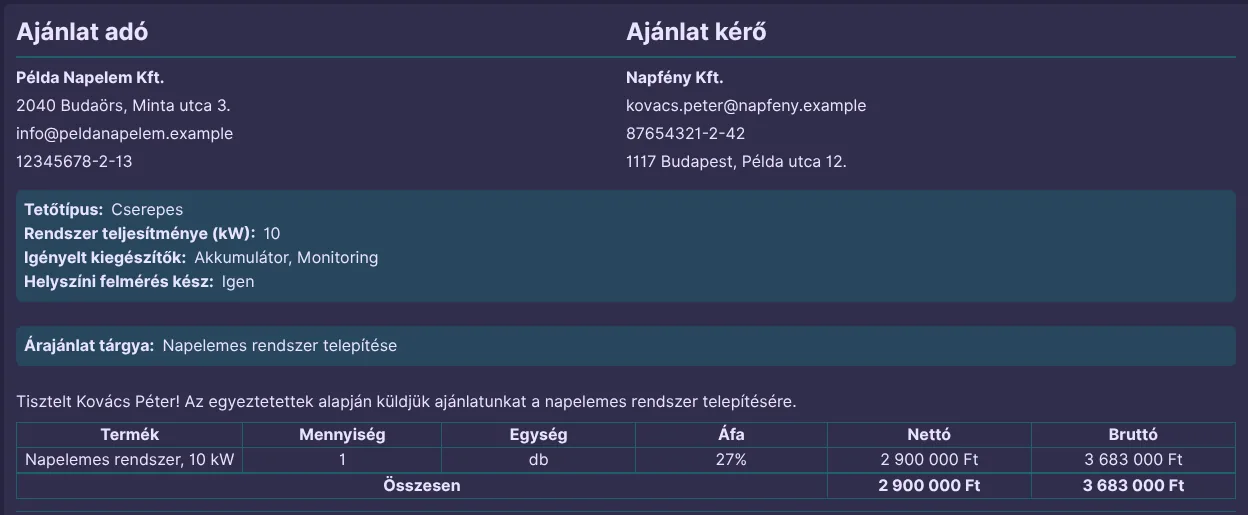
Quote preview with filled-in custom fields

You see it where you work

Filled-in fields show where you set them up: on the client record and on the quote and order preview, with web addresses as clickable links. The PDF and the email attachment are made from the preview, so your client also sees the values on quotes and orders.

Real-world examples

How a few typical businesses can use custom fields

Solar installer

The details recorded during the site survey carry over to the quote and the order, so the installation team sees everything in one place.

Fields:
Roof type (dropdown), meter ID (text), system output (number)
Shown on:
Client, quote, order

Accounting firm

The client record shows at a glance the client's form of taxation and which tax returns to prepare.

Fields:
Form of taxation (dropdown), tax returns (multi-select dropdown)
Shown on:
Client

Appliance repair service

The technician can see which device it is before going out, and the order states the exact serial number.

Fields:
Device type (text), serial number (text)
Shown on:
Client, order

Marketing agency

The client's website is one click away, and the agreed monthly budget also appears on the quote.

Fields:
Website (web address), monthly ad budget (number)
Shown on:
Client, quote

What you gain

  • Tidy data: Every detail has its own place instead of living in comments and separate spreadsheets.
  • Fewer mistakes: Required fields and validated formats stop incomplete or invalid data.
  • Less typing: The value given for the client carries over to a new quote or order if the field appears there too.

  • No developer needed: You set up the fields yourself and can change them any time as your business changes.

No premium plan, no surcharge: custom fields are included in the 10,000 HUF monthly subscription, with unlimited users.

Frequently asked questions about custom fields

What types of custom fields can I create?

You can choose from six types: text, number, date, dropdown, multi-select dropdown and checkbox. A text field can also expect an email address, a phone number or a web address.

Where do custom fields appear?

On the client, quote and order forms: you choose for each field which ones. A filled-in value only shows where the field appears: on the client record, and on the preview and PDF of quotes and orders.

Do I have to retype the data on the quote?

No, if the field appears on both clients and quotes: a new quote's empty field then takes the value given for the client, and an order takes the value of the quote. A field shown on clients only keeps its value there. A value you enter replaces the inherited one, and existing documents do not change if you edit the client later.

Can I make a field required?

Yes, for every type except the checkbox. A form cannot be saved without its required fields. If you make a field required later, it has to be filled in on existing clients, quotes and orders the next time they are edited.

Can I edit or delete a field?

Yes. You can change a field's name, where it appears and its settings at any time, but not its type once it is saved. After deletion the field disappears from the forms, and the values already filled in are no longer shown.

Who can create custom fields?

The owner, and users whose role includes the “Access to custom field settings” permission. Anyone who can edit a client, quote or order can fill in its custom fields.

Can I filter by custom fields or import their values?

Not yet. Custom fields are not part of the list filters, the CSV import, the client list export or the conditions of automated processes. You fill in the values on the forms.

What do custom fields cost, and how many can I create?

They have no separate price: every feature is part of the single monthly fee, and the number of fields is not limited.

Shape the CRM around your own data

Try CoreCRM free for 30 days, no credit card required. We explain step by step how to set up custom fields in our Knowledge Base.

Free Trial
This website uses cookies to provide personalized content, analyze traffic, and improve site functionality. By clicking the "Accept" button, you consent to the use of cookies.