Custom Fields
With custom fields you can add your own data to clients, quotations and orders when the built-in fields do not cover everything your business needs. This could be a roof type, the serial number of a device or a client's form of taxation.
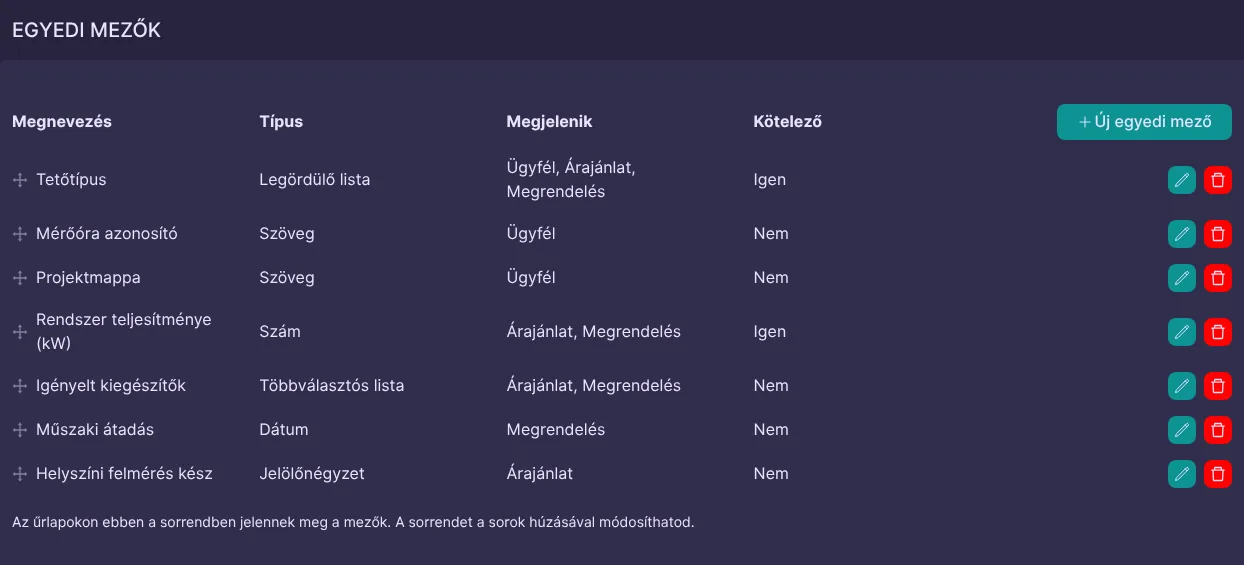
You manage the fields on the "Custom fields" page of the Settings menu. The list shows the name and type of each field, where it appears and whether it is required.
This page requires the "Access to custom field settings" permission (the "Owner" role has access to everything). Roles can be set up here. Filling in the fields needs no separate permission: anyone who can edit a client, quotation or order can also fill in its custom fields.
Creating a Field
To create a new field, click the "New custom field" button in the table header. The following popup appears.
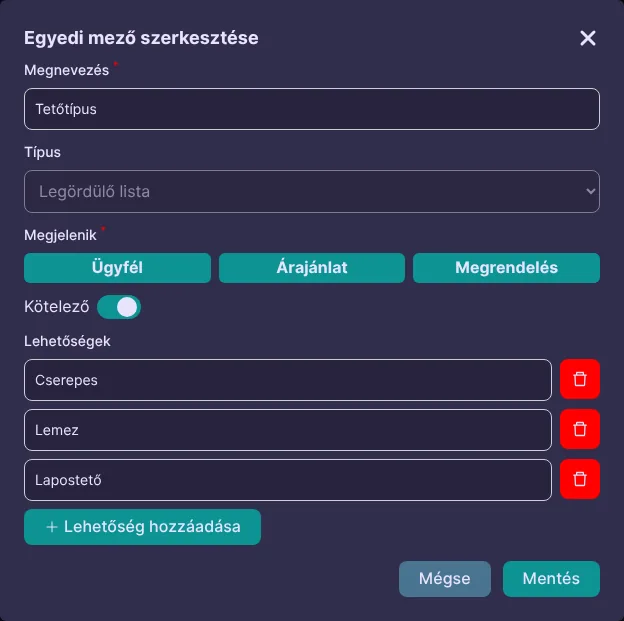
- Name: the name the field has on the forms.
- Type: the type of the field, described below. The type cannot be changed once the field is saved.
- Shown on: choose whether the field appears on clients, quotations, orders, or all three. At least one must be selected.
- Required: a form cannot be saved without its required fields. This setting is not available for checkboxes, because "no" is a valid answer there too.
Field Types
- Text: text of up to 1000 characters. You can set a minimum and maximum length and a format: besides free text, the field can expect an email address, a phone number or a web address, and the system then checks the value entered.
- Number: you can set a minimum and maximum value.
- Date: you can set the earliest and latest date.
- Dropdown: one of the options you provide can be selected.
- Multi-select dropdown: several of the options you provide can be selected, and you can set the minimum and maximum number of selections.
- Checkbox: a yes/no switch.
Dropdowns can have at least one and at most 100 options, and two options cannot have the same name.
Order, Editing and Deleting
The fields appear on the forms in the same order as in the list. To change the order, drag a row by the icon at its start.
Use the buttons at the end of a row to edit or delete a field. When editing, you can change everything except the type.
- If you remove an option from a dropdown, it no longer appears on the clients, quotations and orders already filled in.
- If you delete a field, it disappears from the forms, and the values already filled in are no longer shown anywhere.
- If you make a field required later, existing data does not change, but the field has to be filled in the next time the record is edited.
Filling In the Fields
In the client editor, custom fields are at the bottom of the Additional Information block, above the contacts.

In the quotation and order editors, you will find them below the checklist field. Required fields are marked with an asterisk, and if a value is invalid, the system says so below the field.
Inherited Values
If a field appears on both clients and quotations, you do not have to fill it in twice: if you leave the field empty on a new quotation, it takes the value given for the client when you save. The form tells you this too.
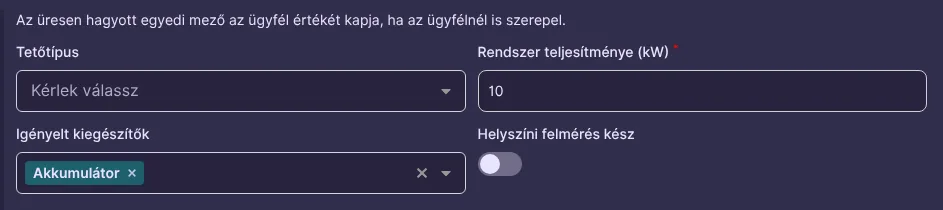
Orders work the same way: an order generated from a quotation takes the value of the quotation, and the value of the client if the field is not filled in there.
A few rules:
- A field only inherits a value if it appears in both places.
- If you fill in the field, your value counts, not the inherited one.
- The value is copied once, when the record is created. If you change the client's data later, existing quotations and orders stay as they are.
- An inherited value also satisfies a required field. If a required field is not filled in for the client either, the system tells you on saving which field is still missing.
- Quotations and orders created by automated processes, and clients imported from CSV, are created with empty custom fields.
Where Filled-In Values Appear
Filled-in fields appear on the client details page...

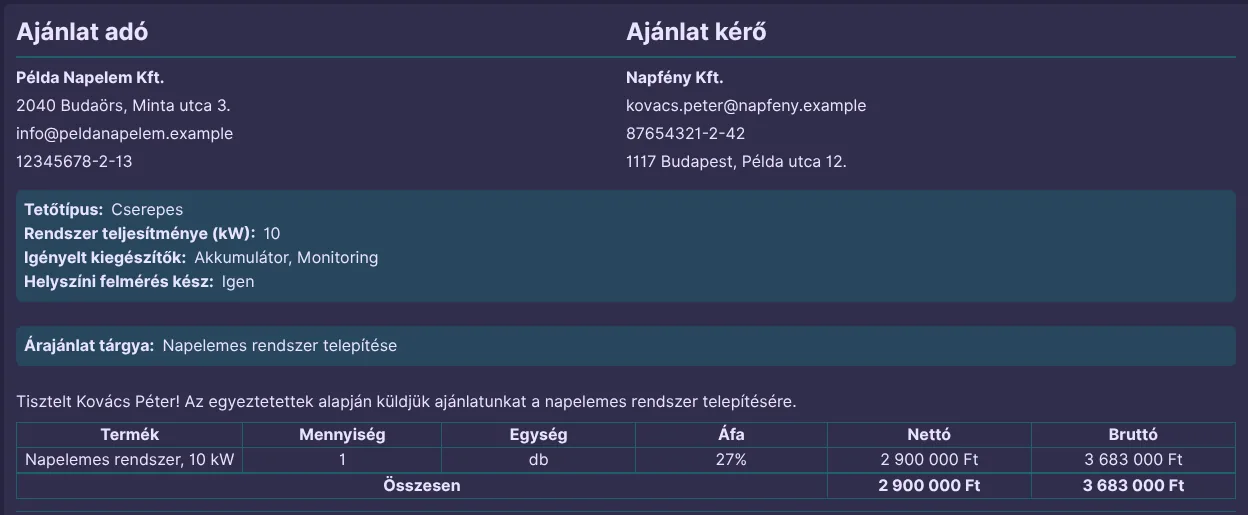
...and on the quotation and order preview.
- A field in web address format appears as a clickable link.
Important: the PDF, the printed version and the email attachment of a quotation or order are made from the preview, so your client also sees the custom field values on them. If a detail is for internal use only, show it on clients only.
Custom fields are currently not part of the list filters, the CSV import, the client list export or the conditions of automated processes.