Checklists in your CRM, so no step gets missed

Create a template once and have your team follow the same steps on every job

Free Trial
Virtual checklist with ticked items floating above a laptop

Why use checklists?

Most mistakes come from forgetfulness, not a lack of know-how: a site photo gets skipped, a signature is missed, or a tool stays at the office. When the steps only live in people's heads, every job runs a little differently – and problems often surface only at the client's.

With CoreCRM checklists, the steps of routine work are written down and can be ticked off as you go. You attach a list wherever the work happens – to a client, quote, order, task, Kanban card or calendar entry – so everyone follows the same process.
Three steps to going live

  1. 1

    Sign up

    A 30-day trial with no card details. The system is ready to use right after registration.

  2. 2

    Bring your data over

    Clients, products and services can be imported from Excel or your previous CRM, at no extra cost.

  3. 3

    Configure and go live

    Set up roles, departments, your email account and invoicing, then start working.

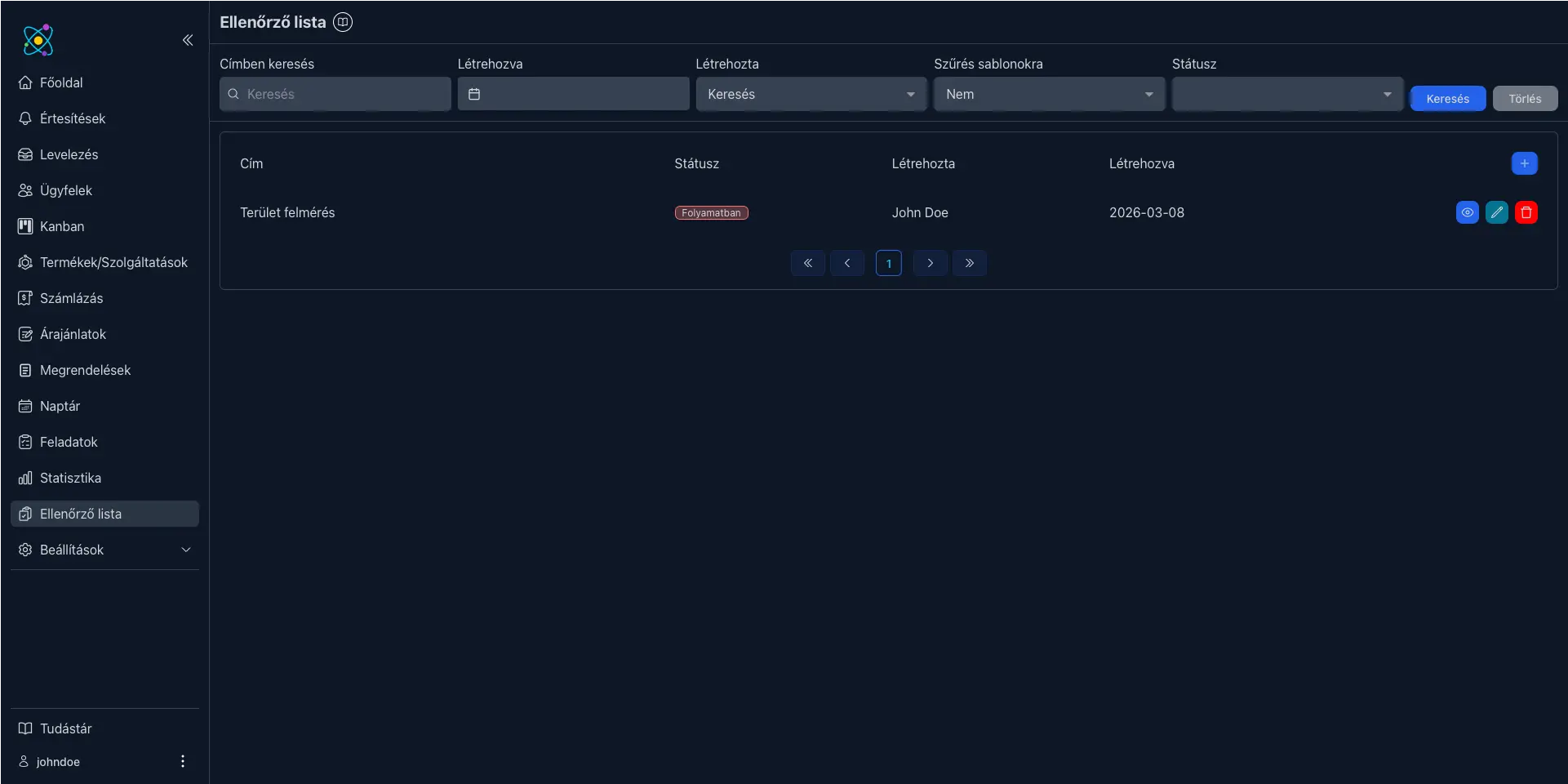
List of checklists with filters, including a template filter

All your lists in one place, easy to filter

The Checklists menu shows every list in one table, filterable by title, creator, creation date, status, and whether it is a template. Deleting can be tied to a permission, so only the people you allow can remove a list.

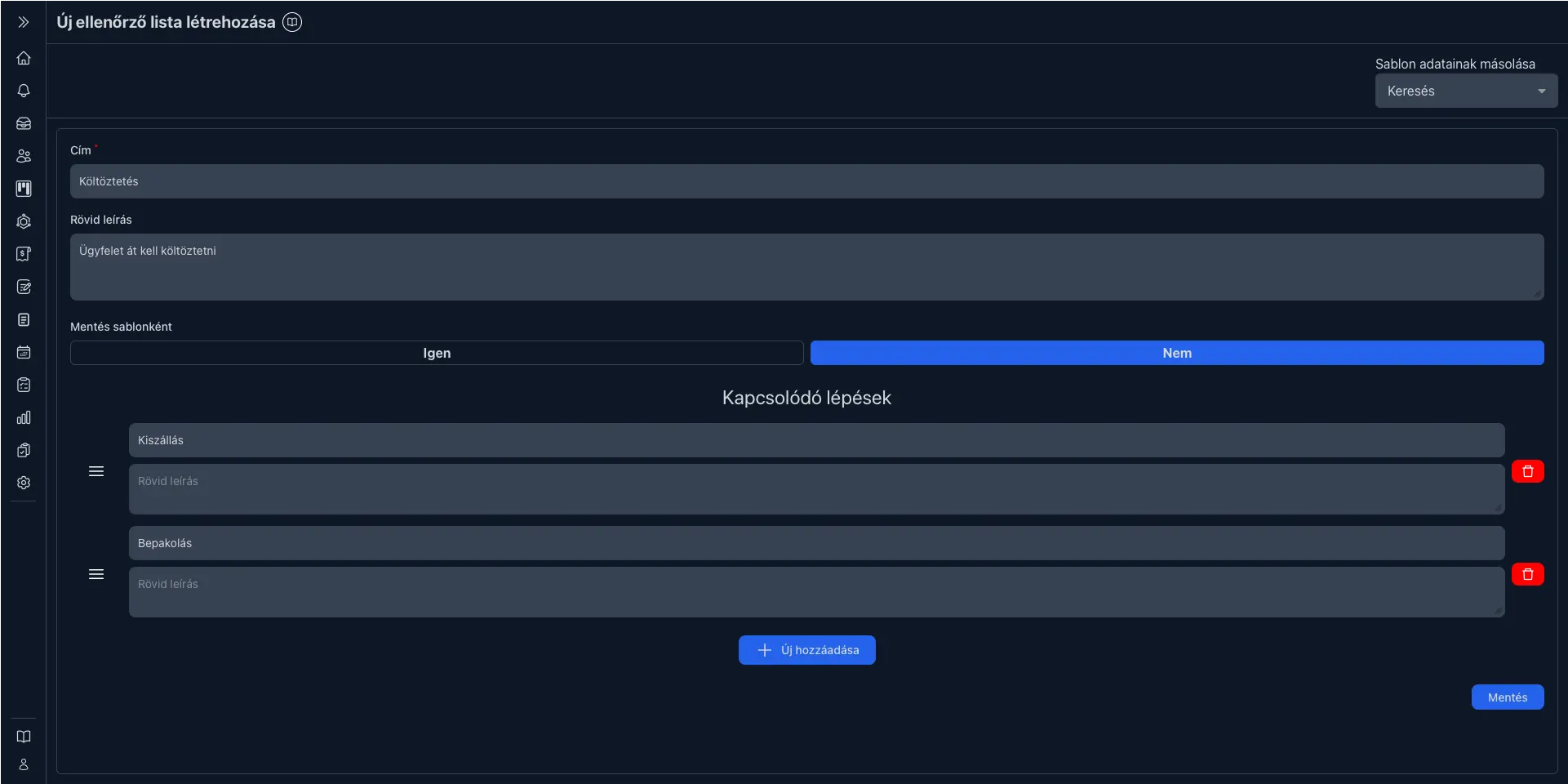
Creating a checklist with the save-as-template option, template copying and reorderable steps

Templates mean you never start from scratch

Save a list as a template and, for similar jobs, simply pick it: the system loads its title, description and steps into the new list's form. You can adjust it to the situation and reorder the steps by dragging them – while the template itself stays unchanged.

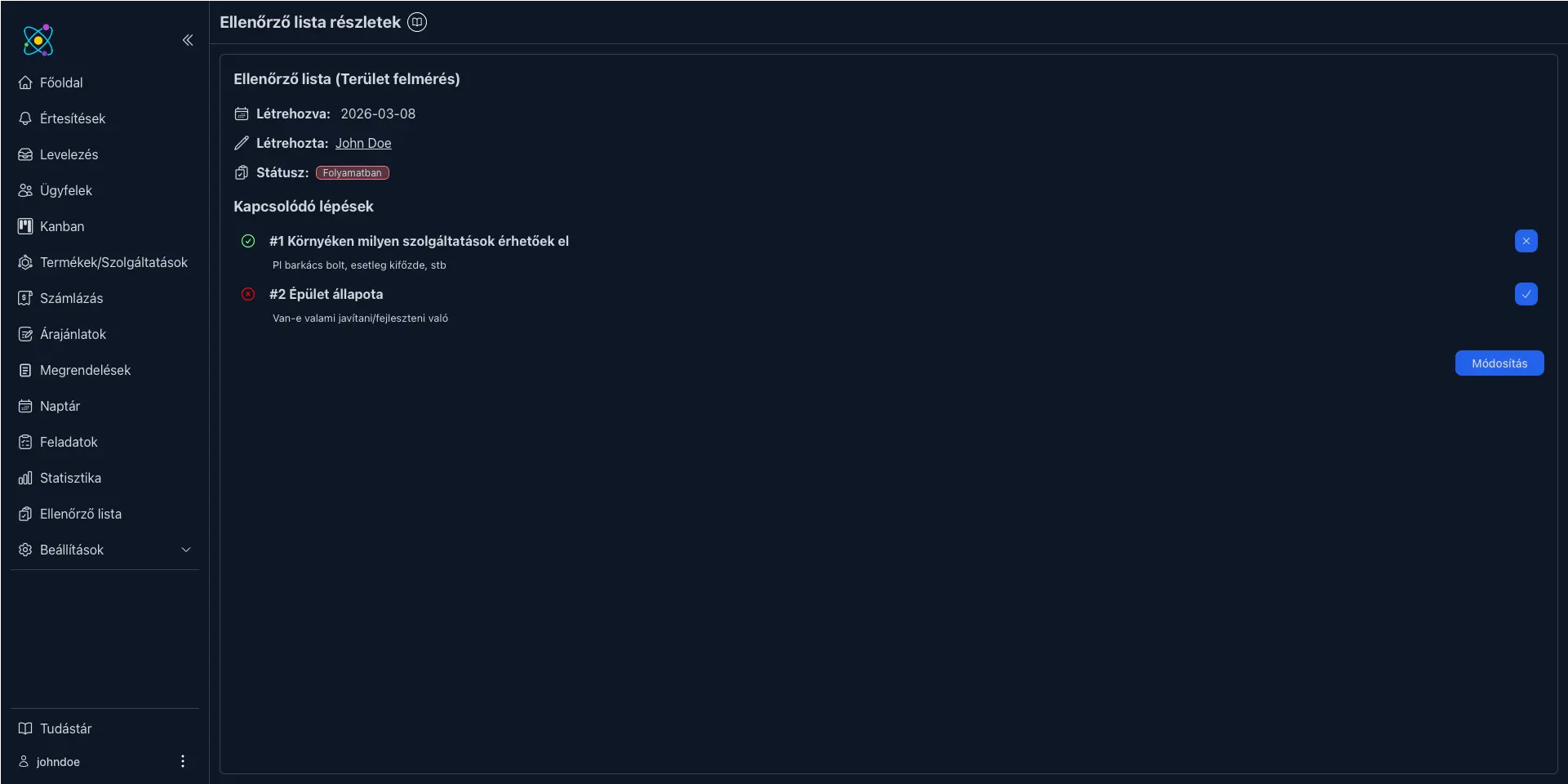
Checklist details with steps that can be ticked off and a status indicator

One list in several places – with the same status everywhere

You can attach the same checklist to several places at once, for example to a client, a quote and a task. If someone ticks off a step on the client's page, it shows as done on the quote as well. A list becomes complete when all of its steps are done or when you mark it complete manually, and completed lists or ticked steps can even trigger automated processes.

Real-world examples

How checklists guide the work in CoreCRM

On-site survey

In air-conditioning or heating installation, every survey follows the same steps. A list created from a template makes sure nothing is missed on site.

Attached to:
Client and calendar entry
Steps:
Site photos, measurements, agreeing on requirements

Moving job

On moving day, the crew follows the list attached to the Kanban card, while the office sees in the same place what has already been done.

Attached to:
Kanban card
Steps:
Arrival, loading, transport, unloading, handover

Preparing a quote

Before sending a quote, you can run through the list to check that every item, file and condition is in place.

Attached to:
Quote
Steps:
Checking items, attaching files, confirming the deadline

Onboarding a new client

New clients always need the same administrative steps – with automation, the list can even be created on its own.

Attached to:
Client
Steps:
Checking details, contract, first meeting

How the 30-day trial works

  • No card details: Signing up does not ask for any payment information.
  • The whole system: Every feature is available during the trial - you are not getting a cut-down version.
  • The whole team: You can invite your colleagues too, so you can decide based on real use.
  • No automatic charge: Without payment details no subscription starts on its own when the trial ends.
  • Your data stays: If you subscribe, you carry on with the data you entered during the trial.
Free Trial

Frequently asked questions about checklists

Where can I use a checklist?

A list can be attached to a client, order, quote, task, Kanban card or calendar entry – even to several at once. The status of its steps is then shared everywhere.

What is the difference between a template and a regular list?

A template is a reusable pattern: when creating a new list, you can load its data and adapt it to the situation. Templates can't be attached to a client or task directly – a new list is always created from them.

When does a checklist count as complete?

When all of its steps are marked as done, or when you mark the list complete while editing it – you don't have to tick off every step one by one.

Who can delete a checklist?

Deleting can be tied to a permission, which you can grant to users or entire departments in the role settings.

Can checklists be created automatically?

Yes. With automated processes you can have a checklist created, for example, when a new client or quote is added, and a completed list or ticked step can trigger a rule itself.

Bring order to your routine work

Try CoreCRM free for 30 days, no credit card required. We explain step by step how to use checklists and templates in our Knowledge Base.

Free Trial
This website uses cookies to provide personalized content, analyze traffic, and improve site functionality. By clicking the "Accept" button, you consent to the use of cookies.